Is Your Phone Lying? How to Diagnose Hidden Sensor Failures Before They Ruin Your Game
Your phone is lying to you.
It tells the operating system it's sitting flat on a table while you're holding it at a forty-five-degree angle. It claims zero rotation when you're twisting your wrist in a racing game, causing that uncontrollable drift into the guardrail. This isn't a software bug or a laggy frame rate; it is often the silent, creeping death of your gyroscope or accelerometer.
We tend to blame the app developer when augmented reality furniture floats in mid-air or when a character spins out of control. We assume the code is flawed. Rarely do we suspect the silicon itself has taken a hit from a drop three months ago, creating a micro-fracture that only manifests under specific thermal conditions or sustained motion.

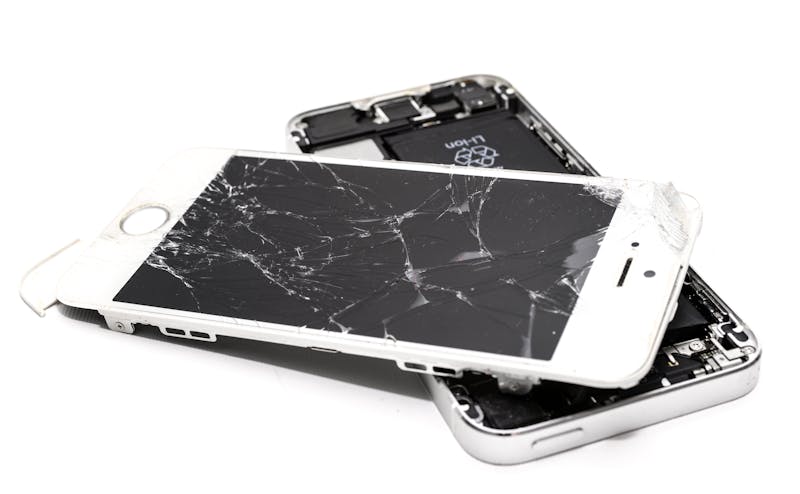
The underlying reason for these ghostly behaviors usually traces back to hardware degradation rather than logic errors. When a MEMS (Micro-Electro-Mechanical Systems) sensor takes physical trauma, it doesn't always fail completely. Instead, it begins to output noisy data, suffer from bias drift, or simply freeze on a single axis while pretending everything is normal.
For developers carrying out management work for motion-based applications, this creates a nightmare scenario. You spend hours tweaking calibration algorithms in your Unity or Unreal Engine project, trying to smooth out jitter that no amount of code can fix because the source data is fundamentally corrupted.
Let's cut through the noise and perform a direct diagnosis of your device's vital signs.
The Three-Step Diagnostic Workflow
You don't need expensive lab equipment to carry out inspection of these components. You just need the right tools to leverage the raw data streams that the operating system usually hides behind layers of abstraction.
Step 1: Grant Deep Access Permissions
Most standard "phone tester" apps skim the surface. They check if the sensor exists, not if it behaves correctly. To get the truth, you must employ tools capable of accessing low-level sensor hubs.
On Android, enable Developer Options and look for "Sensor test" or use a dedicated utility like Sensor Kinetics or CPU-Z that offers granular control. On iOS, the options are tighter due to sandboxing, but apps like Sensor Stream can still provide substantial visibility into the Core Motion framework.
If the app asks for permission to access motion and fitness data, grant it right away. Without this explicit consent, the system will feed you cached or smoothed values designed to save battery, masking the very glitches you are hunting for.
Step 2: Execute Live Diagnostics Under Load
Static tests are useless. A sensor might report perfect values while the phone sits on a desk but fall apart the moment gravity shifts.
Open the live graph view for both the Accelerometer and the Gyroscope. You are looking for three specific traits: noise floor, bias stability, and axis independence.
Hold the device perfectly still. The lines on your graph should be nearly flat. If you see jagged spikes or a wandering baseline that refuses to settle, the sensor is struggling to distinguish signal from noise. This is often the first sign of internal damage.
Now, rotate the device slowly around each axis. Watch the corresponding graph. Does the X-axis spike when you only move the Y-axis? Cross-talk between axes indicates a mechanical misalignment inside the chip package, a common result of impact damage.

Perform rotation tests at different speeds. Fast flicks should produce sharp, clean peaks. Slow tilts should generate smooth sine waves. If the data stutters, drops frames, or flatlines momentarily during movement, the sensor bus is likely failing to keep up with the interrupt requests, or the hardware itself is intermittent.
Step 3: Analyze Real-Time Metrics for Hidden Drift
Here is where most people stop too soon. They check if the numbers move and assume success. That is a mistake.
Leave the phone on a level surface for five minutes. Observe the Z-axis value on the accelerometer. It should read approximately 9.8 m/s² (or 1g) with minimal variance. If that number slowly creeps up or down over time without any physical movement, you are witnessing thermal drift or electronic instability.
This drift ruins games. It confuses the physics engine. It makes VR headsets nauseating.
For those developing applications, capturing this long-tail behavior is essential. You might find that a sensor works fine for the first ten minutes of gameplay but begins to degrade as the SoC heats up. This correlation between thermal load and sensor accuracy is a key driver for many "random" bugs reported by users.
Why Second-Hand Phones Are a Minefield
If you are inspecting a used device before purchase, this workflow becomes your primary defense against hidden defects. Sellers rarely mention that the phone was dropped face-down on concrete. They just say it works fine.
Run the diagnostic immediately. Do not trust the home screen rotation alone. That feature uses a highly filtered, low-frequency version of the sensor data designed for casual use, not precision gaming. It will hide minor faults that become glaring issues in high-performance scenarios.
A phone with a compromised gyroscope might pass a basic functionality check but fail miserably in a racing simulator or an AR measurement tool. The discrepancy lies in the sampling rate and the lack of software correction in professional-grade apps compared to the OS's default handlers.
Look for inconsistencies in the maximum range values. If the spec sheet says the gyroscope supports ±2000 dps (degrees per second) but your test tool caps out at ±1500, the sensor is likely operating in a degraded safety mode or has suffered partial failure.
The Developer's Burden: Handling Bad Data
For the engineers reading this, recognizing hardware failure changes how you approach error handling. You cannot assume the input stream is reliable.
Implement sanity checks within your input pipeline. If the delta between consecutive frames exceeds a physically impossible threshold, discard that sample. If the variance stays too low for too long during active play, flag the sensor as potentially frozen.
Make it possible for your application to detect these anomalies and prompt the user to recalibrate or seek hardware service. Blaming your own code for a broken component wastes sprint cycles and frustrates users who think your app is buggy when their phone is actually the culprit.
Sometimes, the most efficient optimization you can make is to stop trying to fix bad data and instead identify the source of the corruption.
Final Thoughts on Sensor Integrity
Your mobile experience relies on the invisible partnership between software logic and physical hardware. When that link breaks, no amount of patching or updating will restore functionality.
Next time your character drifts left for no reason, or that virtual chair hovers six inches off the floor, do not just reinstall the app. Pull out a diagnostic tool. Perform configuration for a deep-dive test. Read the raw numbers.
The truth is often hiding in plain sight, buried under layers of smoothing algorithms and optimistic error reporting. By learning to interpret these vital signs, you save yourself hours of troubleshooting frustration and ensure that when you lean into a turn, your phone leans with you.
설정을 테스트하기 준비가 되었나요? 단 몇 초만 걸립니다.
추천 도구
온라인 마이크 테스트 - 녹음 및 소리 감지
무료 온라인 마이크 테스트 도구입니다. 마이크의 소리 출력, 에코, 노이즈 여부를 원클릭으로 확인하세요. 실시간 파형 표시와 녹음 재생을 지원하며, 별도 소프트웨어 설치 없이 개인정보를 보호합니다.
조도 센서(Lux) 감지 테스트
기기 조도 센서의 밝기 데이터(Lux)를 실시간으로 읽어옵니다. 스마트폰이나 노트북의 자동 밝기 조절 기능이 정상인지 확인하고 주변 빛의 강도를 모니터링하세요.
주사율(Hz) 실시간 측정기
현재 화면의 실시간 주사율(FPS)을 원클릭으로 확인하세요. 모니터가 120Hz, 144Hz 또는 240Hz 고주사율 모드로 정상 작동 중인지 검증하고 화면 부드러움을 체크합니다.
브라우저 알림 푸시 테스트
웹 푸시 알림 기능을 온라인에서 테스트하여 브라우저와 OS의 알림 권한 설정을 검증합니다. 사용자 지정 테스트 메시지를 전송해 알림 미수신 문제를 해결하세요.
온라인 헤드폰/스피커 테스트 - 좌우 채널 확인
전문적인 오디오 장비 테스트 도구로, 헤드폰과 스피커의 좌우(L/R) 채널 밸런스, 저음 효과 및 음질 왜곡 현상을 정밀하게 점검하여 사운드 출력을 최적화합니다.
온라인 웹캠 테스트 - 카메라/비디오 작동 확인
웹캠이 정상 작동하는지 빠르게 확인하세요. 화면 선명도, 해상도 및 초점 상태를 점검할 수 있습니다. 좌우 반전, 스냅샷 촬영을 지원하며 화상 회의 전 필수 점검 도구입니다.