Silence on One Side? The Ultimate Guide to Diagnosing Stereo Audio Issues
You plug in your headset. The podcast starts. But the host's voice? It's coming only from the left earcup. The right side sits in dead silence.
It happens right when you need it least. Maybe you are about to join a critical client call, or perhaps you are finalizing a mix that demands perfect stereo separation. That sudden asymmetry triggers immediate panic. Is the cable fried? Did Windows update break your drivers again? Or is the headphone jack itself giving up the ghost?
Before you rush out to buy new gear or reinstall your entire operating system, stop. Take a breath. Most of the time, the culprit isn't catastrophic hardware failure. It is often a misconfigured balance slider, a dirty connection, or a browser permission that got denied by accident. We can carry out diagnosis of these issues systematically, using tools that run right in your browser, no heavy software installation required.

The First Suspect: Physical Connections and Balance Sliders
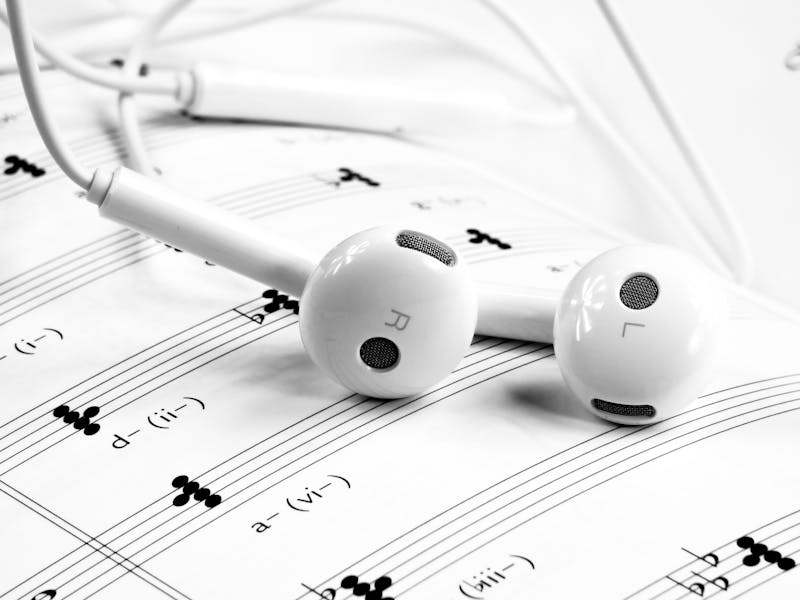
Let's start with the basics, because overlooking them is embarrassingly common. If you are using wired headphones, that 3.5mm jack acts as a fragile bridge between your device and your ears. Dust, lint, or a slightly loose fit can sever the connection to one channel while leaving the other intact. Try wiggling the connector gently while audio plays. If the sound cuts in and out on the silent side, you have likely identified a physical obstruction or a frayed wire inside the cable.
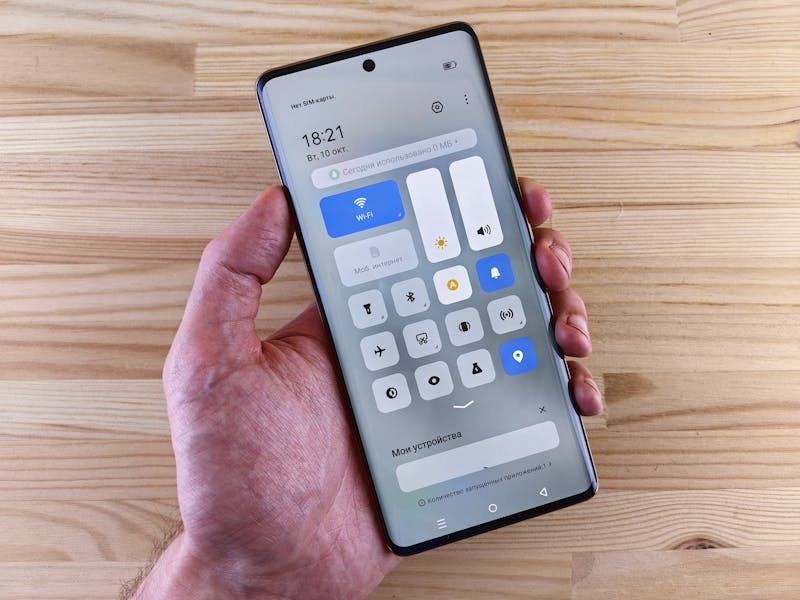
Then there is the software balance control. Operating systems come with built-in features that allow users to shift audio output entirely to the left or right channel. Sometimes, a stray keypress or an accessibility setting adjustment performs this shift unintentionally. You need to carry out verification of your system's audio balance settings immediately. On Windows, this lives deep in the Sound Control Panel under device properties; on macOS, it sits plainly in the Output tab of Sound preferences. Ensure the slider rests dead center. If it leans hard to one side, your "broken" headphones are actually fine; the system is just ignoring half of them.
Leveraging Browser-Based Diagnostic Tools
Once you rule out the physical and the obvious settings, it is time to bring in specialized diagnostics. This is where online audio testing tools shine. They eliminate the variable of local media players, which might have their own independent balance controls messing up your perception. By leveraging a dedicated web-based tester, you force the browser to handle raw audio streams directly, exposing issues that hidden app settings might mask.
These platforms typically offer a suite of tests designed to isolate specific frequency ranges and channel behaviors. You do not just listen for volume; you perform analysis of clarity, separation, and distortion. A robust tool will let you toggle between left-only, right-only, and combined stereo modes. This capability makes it possible to confirm whether the silence is absolute or if there is a faint, distorted whisper struggling to get through.
When you load such a tool, the first step involves granting microphone or speaker permissions. Browsers, in their zeal to protect privacy, often block audio output scripts until you explicitly say yes. If you click "Test Left Channel" and hear nothing, check the address bar. Did the browser block the autoplay? Did you deny the site access to play sound? These small permission gates frequently stand between you and a successful diagnosis.
Executing the Stereo Separation Test
The core of the troubleshooting process relies on the stereo separation test. Here, the tool sends a distinct tone—often a sweeping sine wave or a spoken word count—to the left channel exclusively, then switches to the right. Your job is to listen critically. Does the tone appear clearly in the expected ear? Is the volume identical?
If the left channel blasts a clear 1kHz tone but the right channel remains mute, you have confirmed a single-channel dropout. This result points strongly toward a hardware fault in the cable, the jack, or the driver unit inside the earcup itself. However, if both channels play but one sounds significantly quieter or muffled, the issue might stem from debris blocking the speaker mesh or a failing amplifier circuit that cannot drive the driver to full capacity.
We also need to talk about phase cancellation. Sometimes, both sides seem quiet not because they are broken, but because they are playing out of phase. When the left channel pushes air out while the right pulls it in with identical timing, the sound waves cancel each other out, creating a hollow, thin center image. Advanced diagnostic tools include a phase inversion check. By flipping the polarity of one channel digitally, you can hear if the sound suddenly becomes full and rich. If inverting the phase fixes the sound, your source file or your cable wiring has a polarity mismatch.
Analyzing Frequency Response and Distortion
Silence is obvious. Subtle distortion is not. A driver might still produce sound but fail to reproduce bass frequencies accurately, making the audio feel unbalanced even if the volume meters look equal. To catch this, you must carry out evaluation of the frequency response across the spectrum.
Good testing suites provide sweeps that move from deep sub-bass (20Hz) up to piercing highs (20kHz). Listen closely as the tone climbs. Does the bass disappear on one side while remaining punchy on the other? This symptom often indicates a blown woofer or a torn surround in dynamic drivers. In planar magnetic headphones, it could mean a partial short in the trace lines.
Distortion manifests differently. Instead of missing sound, you hear crackling, buzzing, or a gritty texture overlaying the pure tone. This usually happens at higher volumes. If you detect distortion on only one side during a high-amplitude test, the amplifier channel driving that side is likely clipping or the driver is mechanically bottoming out. Do not ignore this. Pushing a distorted driver harder will only accelerate its failure.
The Role of Bluetooth and Wireless Quirks
Wireless headphones add another layer of complexity. Bluetooth compression codecs like SBC, AAC, or aptX can sometimes introduce artifacts that mimic hardware failure. If your left earbud disconnects intermittently, it might not be dead; it could be suffering from interference or a battery imbalance within the case.
Many true wireless earbuds operate in a master-slave configuration, where one bud receives the signal and relays it to the other. If the relay link breaks, the slave side goes silent. Resetting the pairing often resolves this. You need to perform a factory reset of the earbuds, forcing them to re-establish their internal handshake. Consult your manufacturer's guide for the specific button combination, as it varies wildly between brands.
Furthermore, some devices allow you to configure mono audio output for accessibility reasons. If this trait is enabled, the system merges both channels into one and sends it to both ears, or sometimes just one. While intended to help those with hearing loss in one ear, it confuses anyone trying to diagnose stereo issues. Ensure that "Mono Audio" is disabled in your accessibility settings before running any stereo tests.
Interpreting the Results and Taking Action
So, you have run the tests. You have checked the balance sliders, cleaned the jacks, verified permissions, and swept the frequencies. What does the data tell you?
If the online tool shows perfect output but your specific application (like Zoom or Spotify) still sounds off, the problem lies within that application's internal audio engine. Check the app's specific settings menu. Many communication platforms have their own noise suppression and automatic gain control features that can aggressively duck one channel if they detect wind noise or uneven input levels.
If the silence persists across all browsers and apps, and the physical wiggle-test yielded no change, you are likely facing a hardware end-of-life scenario. Cables fray internally beyond repair. Driver coils burn out. At this stage, no amount of software tweaking will perform recovery of the audio channel. It is time to contact the manufacturer for warranty service or invest in a replacement.
However, do not underestimate the power of a simple cleaning. Compressed air can dislodge compacted earwax or lint from the speaker grille, restoring clarity instantly. It sounds trivial, yet it solves a surprising number of "broken headphone" complaints. Before declaring defeat, give the hardware a thorough physical inspection and cleaning.
Final Thoughts on Audio Hygiene
Audio asymmetry disrupts workflow and ruins immersion. Whether you are editing video, attending a board meeting, or just enjoying music, balanced sound is non-negotiable. By adopting a structured approach to diagnosis—moving from physical checks to software settings, then to specialized online testing tools—you save time and money. You avoid replacing good equipment based on a false assumption.
Keep these diagnostic steps in your back pocket. The next time silence falls on one side, you won't panic. You will know exactly which lever to pull, which setting to toggle, and which test to run. Your ears deserve that level of care, and your productivity depends on it.
설정을 테스트하기 준비가 되었나요? 단 몇 초만 걸립니다.
추천 도구
조도 센서(Lux) 감지 테스트
기기 조도 센서의 밝기 데이터(Lux)를 실시간으로 읽어옵니다. 스마트폰이나 노트북의 자동 밝기 조절 기능이 정상인지 확인하고 주변 빛의 강도를 모니터링하세요.
온라인 GPS 위치 정확도 테스트
현재 기기의 지리적 위치 정보를 가져와 GPS 및 IP 위치 추적의 정확도를 테스트합니다. 위도/경도 좌표, 고도 및 실시간 위치 업데이트 속도를 확인하세요.
인터넷 지연 시간(Ping) 및 안정성 테스트
네트워크 연결의 안정성을 온라인에서 테스트하세요. Ping 지연 시간, 네트워크 지터, 패킷 손실률을 실시간으로 모니터링하여 게임 렉이나 비디오 버퍼링 원인을 찾아냅니다.
온라인 헤드폰/스피커 테스트 - 좌우 채널 확인
전문적인 오디오 장비 테스트 도구로, 헤드폰과 스피커의 좌우(L/R) 채널 밸런스, 저음 효과 및 음질 왜곡 현상을 정밀하게 점검하여 사운드 출력을 최적화합니다.
비디오 디코딩 성능 테스트 - 4K/8K 재생 점검
브라우저와 기기의 비디오 디코딩 성능을 온라인에서 확인하세요. 4K/8K 고화질 영상 테스트를 지원하며, 재생 끊김, 프레임 드랍, 화면 깨짐 및 싱크 불일치 문제를 빠르게 진단합니다.
모바일 센서 감지 - 자이로스코프 및 가속도계
스마트폰과 태블릿의 내장 센서를 정밀 검사합니다. 자이로스코프, 가속도계 및 방향 센서 데이터를 실시간으로 읽어 기기의 모션 감지 기능이 민감한지 확인합니다.