Silence on One Side? The Ultimate Guide to Diagnosing Stereo Audio Issues
You are in the middle of a critical client call, or perhaps deep into a mix session, and suddenly the audio landscape collapses. The center vanishes. Voices drift entirely into your left ear while the right side offers nothing but dead air. It is not just annoying; it breaks your workflow immediately. Most people panic and start swapping cables blindly, but that approach wastes time. The underlying reason for stereo failure usually hides in plain sight, buried within software configurations or a single frayed wire strand that you cannot see with the naked eye.
Let us cut through the noise. You do not need expensive diagnostic gear to perform recovery of your audio setup. You need a systematic method to isolate the variable causing the silence.
The Hardware Lie
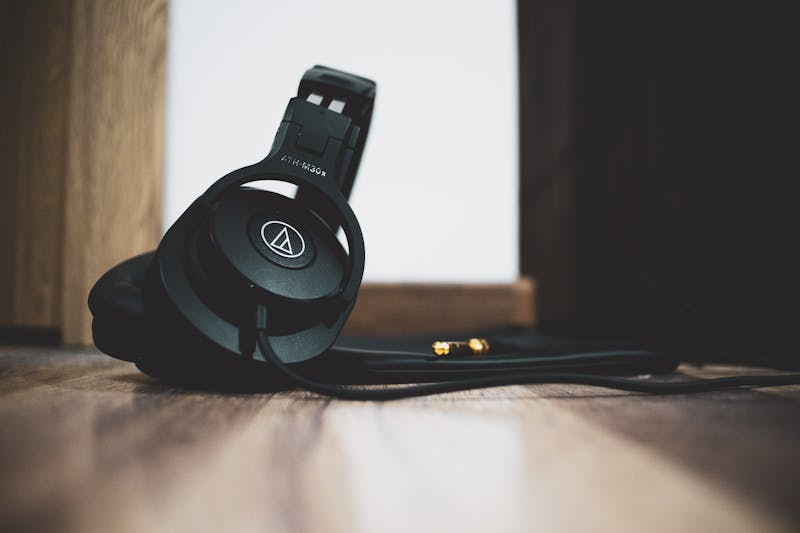
We often assume the speakers or headphones have died. While drivers do blow out, hardware failure is actually less common than configuration errors. Before you order replacement gear, you must carry out inspection of the physical chain. A mono signal bleeding into one channel often looks like a dead channel to the untrained ear. If your source is outputting mono, both ears hear the same thing, but if a cable is shorted, you might hear nothing on one side.
Check the connector first. That 3.5mm jack or TRS plug acts as the gateway. If the tip or ring inside the plug gets bent or oxidized, it fails to make contact with the device port. You should wiggle the cable gently while playing sound. Does the audio crackle back to life? If so, you have identified a broken internal conductor. Replace the cable right away. Do not try to tape it up; that is a temporary fix that leads to intermittent failures later.
For desktop setups, verify the port color coding. Green usually means line-out for stereo, but some motherboards allow you to perform configuration for rear speakers or subwoofers on those same jacks via software. If your OS thinks the green port is now a surround-back speaker, your front stereo image will vanish or become severely unbalanced.
Software Settings: The Silent Culprit
Here is where most users get stuck. They swap three pairs of headphones and never check the balance slider. Operating systems come with accessibility features designed to help users with hearing loss, but these settings often get toggled by accident. On Windows, you can navigate to the Sound Control Panel and inspect the Levels tab for your playback device. Look for the "Balance" button. If the Left slider sits at 100 and the Right slider sits at 0, your hardware is fine; your OS is muting one side intentionally.
MacOS handles this differently but with similar consequences. Go to System Settings, then Accessibility, and find the Audio section. There is a slider there labeled "Balance." If someone bumped this during a presentation prep, your entire stereo field shifts hard to one side. Move it back to the center. This simple action resolves the issue to a significant extent in countless support tickets.
Do not ignore the application-level controls either. Your Digital Audio Workstation (DAW) or video conferencing tool might have its own mixer. Zoom, Teams, and Slack all possess independent audio routing logic. If the input source is set to "Mono" while your output expects stereo, the engine might sum the channels poorly or drop one entirely. You need to carry out verification of the app's specific audio preferences, not just the system-wide settings.
Leveraging Online Tools for Precision Testing
Guessing is inefficient. You should leverage professional online tools to generate test tones that expose exactly where the signal breaks. A pure sine wave at 440Hz is great for checking if sound exists, but it does not tell you if the phase is correct or if the separation is clean.
Use a dedicated stereo tester that sweeps frequency while isolating channels. These tools play a tone in the left channel, then the right, then both together. When the tool announces "Left Channel," you should hear sound only in your left ear. If you hear it in both, your cabling is cross-wired or your device is forcing mono downmix. If you hear nothing, the path is broken.
Bass response testing is another critical step. Low frequencies are non-directional to human ears, making them tricky to diagnose. However, if your subwoofer or low-end driver is disconnected on one side, the overall weight of the audio feels thin. Run a low-frequency sweep from 20Hz up to 200Hz. Listen for the point where the rumble disappears from one side. This helps you identify if a specific driver within a multi-way speaker system has failed, rather than the whole unit being dead.
Distortion checks matter too. Sometimes the channel is not silent; it is just filled with harsh digital clipping that makes you think it is broken. Increase the volume gradually while playing a high-dynamic-range track. If one side starts to fuzz or crackle before the other, you are dealing with an amplifier imbalance or a damaged voice coil. Stop the test immediately to prevent further damage.

The Codec and Driver Rabbit Hole
If hardware checks pass and balance sliders are centered, the problem likely lives in the driver stack. Audio drivers act as the translator between your OS and the DAC (Digital-to-Analog Converter). Corrupt drivers can cause channel mapping errors. Instead of reinstalling the whole OS, try to perform a clean installation of the audio driver specifically. Remove the existing driver package completely, reboot, and let the system rediscover the hardware.
On Linux systems, PulseAudio or PipeWire configuration files sometimes get corrupted. You might need to reset the daemon configuration to restore default channel mapping. A quick command to kill the pulseaudio process often forces it to reload its config files and fix weird routing issues.
Bluetooth devices introduce another layer of complexity. The codec negotiation between your phone and headphones determines bandwidth and channel allocation. If the connection falls back to a low-quality hands-free profile (HFP) instead of Advanced Audio Distribution Profile (A2DP), you lose stereo fidelity entirely. The audio becomes mono and telephone-grade. Ensure your device shows "Stereo" or "Media Audio" as active, not just "Call Audio." Disconnect and re-pair the device to force a fresh handshake and renegotiate the best available codec.
Real-World Scenarios: Editors and Educators
Consider the video editor working on a tight deadline. They export a final render, only to find the dialogue is missing from the right channel on their preview monitor. Panic sets in. But wait. Did they check the timeline track pan settings? In Premiere Pro or DaVinci Resolve, a clip might have been accidentally panned 100% left. The export settings might be correct, but the source timeline is skewed. Always validate the source before blaming the render engine.
Teachers setting up classroom audio face similar headaches. A projector connected via HDMI might be sending audio to its internal mono speaker while the external PA system receives nothing. HDMI carries audio and video together, but the EDID (Extended Display Identification Data) handshake can fail. The computer thinks the projector is the primary audio device and sends a mono stream. You must manually select the external audio interface in the sound output menu to bypass the projector's limited audio handling capabilities.

Final Validation Workflow
Do not stop once you hear sound. You must ensure the integrity of the stereo image. Play a track with distinct instrumentation panned hard left and hard right. A well-mixed song will place the snare drum center, vocals center, guitars wide left and right. If the snare drifts, your phase alignment is off. If the guitars only appear on one side, you still have a channel dropout.
Create a checklist for your future self.
- Inspect physical connections and wiggle test cables.
- Verify OS balance sliders are centered.
- Check application-specific audio routing.
- Leverage online tone generators to isolate channels.
- Update or reinstall audio drivers.
- Confirm Bluetooth profiles or HDMI handshakes are correct.
This process takes minutes, not hours. By following this logical flow, you move from guessing to knowing. You stop replacing good equipment and start fixing actual problems. Audio is fundamental to the user experience, whether for a gamer hearing footsteps approach from the right or a surgeon listening to a remote consultation. Silence on one side is a solvable puzzle. Treat it with the technical rigor it deserves, and your workflows will remain uninterrupted.
Prêt à tester vos paramètres ? Juste secondes.
Outils recommandés
Test Fréquence de Rafraîchissement (Hz)
Visualisez les FPS (Hz) de votre écran en temps réel. Vérifiez si votre mode 120Hz, 144Hz ou 240Hz est bien activé et fluide.
Test Webcam en ligne - Vérification Vidéo
Vérifiez rapidement le fonctionnement de votre caméra. Testez la netteté, la résolution et la mise au point. Idéal avant une réunion Zoom ou Teams.
Test de Microphone en ligne - Vérification Audio & Enregistrement
Testez votre micro gratuitement en ligne. Détectez le son, l'écho et le bruit de fond. Visualisation des ondes en temps réel et réécoute sans logiciel.
Capteur de Luminosité Ambiante (Lux)
Lisez les données du capteur de lumière (Lux) de votre appareil. Vérifiez si le réglage automatique de la luminosité fonctionne correctement.
Test Vibration Téléphone & Moteur Haptique
Vérifiez si le vibreur de votre téléphone fonctionne. Testez différents modes (continu, impulsion) pour évaluer le retour haptique.
Test Latence (Ping) & Stabilité Réseau
Analysez la stabilité de votre connexion. Mesurez le Ping, la gigue (jitter) et la perte de paquets pour diagnostiquer les lags en jeu ou en streaming.