Is Your Phone Lying? How to Diagnose Hidden Sensor Failures Before They Ruin Your Game
Your phone lies. It tells the OS it's level when it's tilted, claims stillness while shaking, and ruins your aim in a shooter because the gyroscope decided to take a coffee break. We trust these devices implicitly, yet we rarely question the silent heroes working inside: the MEMS gyroscopes and accelerometers. When these components drift or fail, the fallout isn't just a buggy app; it is a complete breakdown of immersive AR experiences and basic screen rotation logic.
Most users assume a software glitch first. They reboot. They clear cache. They reinstall the game. Meanwhile, the underlying reason for the laggy response sits ignored in the physical layer. A drop last month, one you barely noticed, might have silently damaged internal suspension springs or shifted the micro-electromechanical structure. The device boots up fine. Calls work. Photos look sharp. But the motion data? That stream is corrupted.
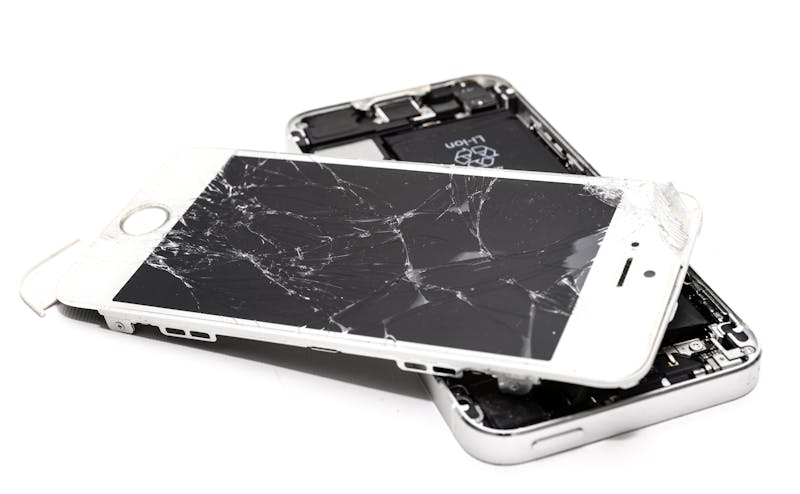
Consider the second-hand market. You buy a "mint condition" flagship. The screen is pristine. The battery health reads 95%. Yet, when you launch a racing simulator, the car drifts left even when you hold the phone straight. This isn't calibration error. This is hardware fatigue. Sellers rarely test motion hardware before purchasing, and buyers seldom think to check it. They focus on cosmetic traits while ignoring the sensor suite that makes modern interaction possible.
Why does this happen? Sensors are mechanical at their core, despite being microscopic. They rely on tiny vibrating structures to detect Coriolis forces. Drop the phone, and you introduce stress fractures or misalignments that aren't visible to the naked eye. Over time, thermal cycling expands and contracts these materials, leading to what engineers call "bias drift." The sensor output slowly wanders away from zero, introducing a phantom tilt that no amount of software smoothing can fully correct.
You need to perform validation of real-time motion data right away. Do not wait for the game to crash. Leverage tools like 'Mobile Sensor Test' to carry out inspection of the raw data streams. This approach allows you to see exactly what the OS sees, stripping away the UI polish that hides the rot.
Open the tool. Look at the gyroscope readout. Place the phone on a flat, stable surface. The values should hover near zero across all three axes (X, Y, Z). If you see a consistent offset—say, +2.5 degrees on the pitch axis—that indicates a static bias. Now, rotate the device smoothly. The curve should follow your movement instantly, then snap back to zero when you stop. If the line wobbles, lags, or refuses to return to baseline, the damping mechanism is compromised.
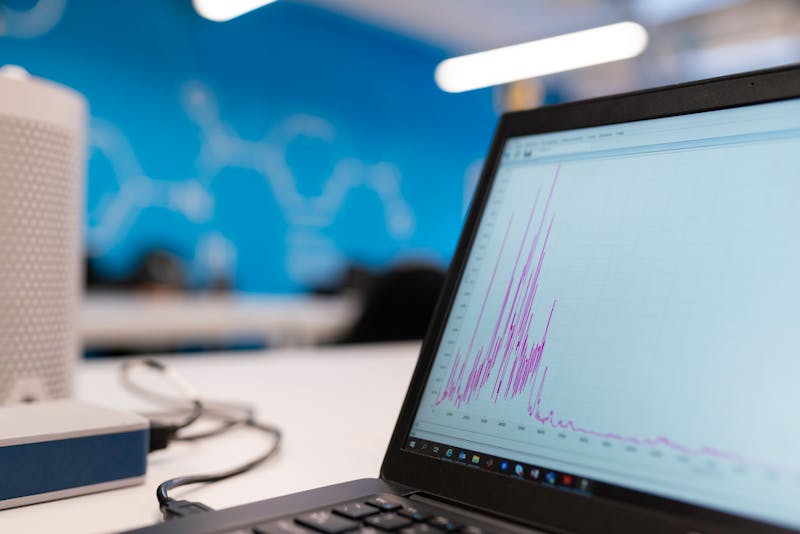
Accelerometers demand similar scrutiny. Tilt the phone 90 degrees. The G-force reading on the relevant axis must shift from 0 to roughly 1.0 (or -1.0 depending on orientation). If the transition is jerky, or if the value caps at 0.8, the sensing element might be physically restricted. Perhaps debris entered the chassis during a previous repair. Maybe the adhesive holding the sensor module degraded. These characteristics define whether your device is well-suited for high-performance gaming or destined for frustration.
Developers often try to patch over these hardware flaws with aggressive filtering algorithms. They average frames. They apply dead zones. While this masks the symptom, it introduces input latency. In a competitive shooter, those extra milliseconds mean missing a shot. The key driver here is physical integrity, not code optimization. No amount of software tuning can make a broken spring vibrate correctly.
For navigation apps, the stakes are equally high. A drifting gyroscope causes the map arrow to spin wildly when you are standing still. Pedestrian mode becomes unusable. Augmented Reality overlays float above buildings instead of sticking to the sidewalk. The experience falls apart because the foundation—the sensor fusion engine—is receiving garbage input.
Do not let faulty hardware ruin your digital experience. Before you commit to a new device, especially a pre-owned one, carry out management work for the sensor diagnostics. Spend five minutes running the tests. Check the variance. Observe the recovery time after rapid movement. If the data looks noisy or biased, walk away. The screen might be perfect, but if the invisible heroes are dead, the phone is merely a brick with a pretty display.
Spot the signs today. Demand accuracy. Your gameplay depends on it.
Prêt à tester vos paramètres ? Juste secondes.
Outils recommandés
Test Pixels Morts & Fuites de Lumière
Utilisez des fonds unis et des mires pour repérer les pixels morts, les pixels chauds et les fuites de lumière (IPS glow). Indispensable pour les écrans neufs.
Test Webcam en ligne - Vérification Vidéo
Vérifiez rapidement le fonctionnement de votre caméra. Testez la netteté, la résolution et la mise au point. Idéal avant une réunion Zoom ou Teams.
Test de Partage d'Écran - Navigateur
Simulez un partage d'écran pour vérifier les permissions du navigateur. Testez le partage de fenêtre, d'onglet ou d'écran entier ainsi que l'audio système.
Test Fréquence de Rafraîchissement (Hz)
Visualisez les FPS (Hz) de votre écran en temps réel. Vérifiez si votre mode 120Hz, 144Hz ou 240Hz est bien activé et fluide.
Test Casque & Enceintes - Canaux Gauche/Droite
Outil professionnel pour tester la stéréo. Vérifiez l'équilibre gauche/droite, les basses et la distorsion de vos écouteurs ou haut-parleurs.
Test Capacités d'Affichage HDR
Vérifiez si votre écran supporte le HDR (High Dynamic Range). Comparez le rendu SDR vs HDR et testez la profondeur des couleurs et la luminosité.