Silence Before the Stream: How to Master Your Audio Setup in 3 Minutes
Nothing murders a professional presentation faster than that split second of dead air followed by, "Can you hear me now?"
It happens every day. A developer jumps on a call to demo a critical feature, a teacher starts a lecture, or a streamer goes live, only to be greeted by static, echo, or total silence. The visual quality might be 4K crisp, but if the audio sounds like it's coming from inside a tin can buried in a wind tunnel, trust evaporates immediately. We obsess over camera angles and lighting rigs while treating our microphones as an afterthought. That is a fundamental error in judgment.
Audio is the unsung hero of remote communication. It carries the nuance, the authority, and the clarity of your message. When it fails, the entire production collapses.
You do not need to install heavy, complex software suites or spend hours tweaking equalizer settings to fix this. You need a rapid, surgical validation workflow. You need to carry out verification of your entire signal chain before you ever hit the "Go Live" button. This guide strips away the fluff. We are going to leverage instant online tools to perform detection of hidden issues like background noise floor anomalies and latency spikes.
Follow this three-step process to grant permissions, analyze real-time waveforms, and validate your sound environment. Guarantee that you never face that awkward silence again.
Step 1: Force the Permission Handshake
The first failure point is rarely the hardware; it is the browser's gatekeeping mechanism.
Modern browsers like Chrome and Firefox treat microphone access as a high-security zone. They will not simply let your application listen. You must explicitly carry out the granting of permissions. Often, users click "Block" by habit or miss the prompt entirely because it appeared behind another window. Then they wonder why the input meter stays flatlined.
Do not assume the permission exists. Verify it.
Navigate to your testing environment. When the browser prompts for microphone access, ensure you select "Allow" right away. If you accidentally clicked "Block," you cannot just refresh and hope for the best. You must perform manual intervention in the site settings. Click the lock icon in the address bar, locate the microphone entry, and switch the toggle to "Allow." Only then can the browser begin to capture audio data.
This seems trivial, yet it is the underlying reason for countless failed streams. The software is ready, the mic is plugged in, but the digital door remains locked. Unlock it first.
Step 2: Visualize the Waveform in Real Time
Once the permission handshake is complete, stop guessing. Look at the data.
Human ears are deceptive, especially in noisy offices or homes with running HVAC systems. What sounds "quiet" to you might be registering as a roaring jet engine to your audience. You need to carry out visualization of the audio input to see exactly what the computer is hearing.
Leverage a browser-based audio tester that renders a live waveform. This is not just a moving line; it is a diagnostic map of your acoustic reality.
Watch the amplitude. A healthy voice should push the waveform peaks into the green or yellow zones, typically between -12dB and -6dB. If the line is flat, your gain is too low, or the wrong input device is selected. If the line is constantly slamming against the top red ceiling, you are clipping. Clipping introduces harsh distortion that no amount of post-processing can fully recover. You must perform adjustment of your input gain until the signal sits comfortably in that dynamic sweet spot.
Look for the noise floor. When you stop speaking, does the waveform return to a dead flat line? Or does it continue to jitter with small, erratic spikes? Those spikes represent your background noise—keyboard clatter, fan hum, traffic outside. If the noise floor is high, your listeners will fatigue quickly. They will struggle to separate your voice from the chaos.
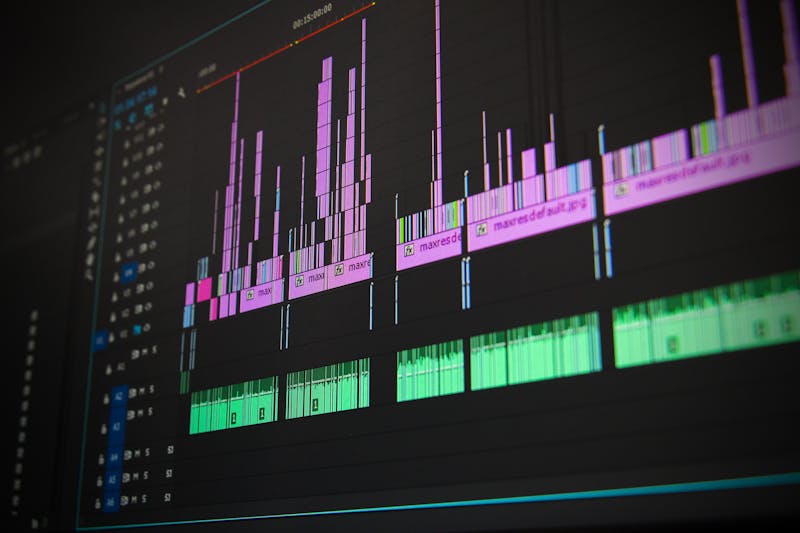
This visual feedback loop is essential. It allows you to make immediate, data-driven decisions. Move the mic closer. Shut the window. Change the input source from "Default" to your specific USB interface. Do not rely on feelings; rely on the graph.
Step 3: Stress Test for Latency and Echo
Clear sound is useless if it arrives two seconds late or bounces back as an eerie echo.
Latency and echo are the silent killers of conversation flow. They cause people to talk over each other, creating a frustrating stutter-step rhythm that destroys engagement. You must carry out a stress test of your full duplex audio path—the round trip from your mouth, through the network, and back to your ears.
Many simple testers only check input. That is insufficient. You need a tool that plays sound back to you or measures the round-trip time. Speak into the mic and listen. Is there a delay? Even a 200-millisecond lag can feel unnatural. If you hear your own voice repeating, you have an echo loop. This often happens when speakers are too loud and bleed into an open microphone, or when software echo cancellation fails to perform its job.
Check your monitoring settings. Are you listening to "Direct Monitor" from your interface while also hearing the processed stream from your computer? That creates a double-hear effect. Disable one path. Ensure that your output device matches your expectations. Sometimes the system defaults to a Bluetooth headset with terrible compression and high latency instead of your wired headphones.
Perform a quick dialogue simulation. Record a sentence, play it back, and measure the gap. If the gap is noticeable, troubleshoot your buffer sizes or switch to a wired connection. Wi-Fi is convenient, but for live audio, Ethernet provides the stability required to minimize packet loss and jitter.
The Cost of Skipping Validation
Why do we skip these steps? Usually, it is arrogance or haste. "It worked yesterday," we think. "I'll just fix it during the intro."
That is a dangerous gamble.
Technical issues rarely resolve themselves under pressure. They compound. The moment you go live, the stakes rise, and the likelihood of something going wrong increases to a significant extent. By spending three minutes beforehand to grant permissions, analyze waveforms, and validate latency, you insulate yourself from disaster.
You are not just checking a box. You are establishing professionalism. You are signaling to your audience that you respect their time and attention. When your voice comes through crystal clear, devoid of static and lag, you build immediate credibility. The content speaks for itself because the medium is invisible.
So, before your next stream, before that crucial client call, pause. Open the tester. Watch the waves. Listen to the silence between the words. Make sure the only thing your audience hears is your message.
Carry out this ritual every time. Eventually, it becomes muscle memory. And when it does, you will never have to utter those dreaded words again: "Sorry, can you hear me?"
Bereit, Ihre Einstellungen zu testen? Nur Sekunden.
Empfohlene Werkzeuge
GPS & Standortgenauigkeit Test
Ermitteln Sie Ihren aktuellen geografischen Standort. Testen Sie die Genauigkeit von GPS- und IP-Ortung. Zeigt Koordinaten, Höhe und Aktualisierungsrate.
Ping & Netzwerkstabilität (Jitter/Loss)
Testen Sie die Stabilität Ihrer Internetverbindung. Echtzeit-Überwachung von Ping-Latenz, Jitter und Paketverlusten. Hilft bei Lag in Spielen und Videopuffern.
Bildschirmfreigabe Test - Screen Sharing Check
Simulieren Sie eine Bildschirmfreigabe für Online-Meetings. Testen Sie Berechtigungen, Fensterfreigabe und Systemaudio-Übertragung im Browser.
Browser-Benachrichtigungen & Push Test
Testen Sie Web-Push-Benachrichtigungen online. Überprüfen Sie Berechtigungen und ob Sie Nachrichten vom Browser oder System erhalten.
Mikrofon Test Online - Aufnahme & Pegel prüfen
Kostenloser Online-Mikrofontest. Prüfen Sie sofort Ton, Echo und Rauschen. Mit Echtzeit-Wellenform und Wiedergabe. Kein Download nötig, sicher und privat.
Kopfhörer & Lautsprecher Test - Stereo Links/Rechts
Professioneller Audio-Test für Kopfhörer und Lautsprecher. Prüfen Sie die Balance zwischen linkem und rechtem Kanal, Bassleistung und Verzerrungen.