The Hidden Flaws in Your Display: A Complete Guide to Dead Pixel and Light Leakage Testing
You unbox a brand-new monitor, peel off the protective film, and fire it up. The desktop loads. Everything looks crisp. You feel that little rush of satisfaction.
Then, three days later, while working on a dark-themed code editor or watching a night scene in a movie, you spot it. A tiny, glowing blue dot that refuses to turn black. Or maybe a cloudy patch of light bleeding from the corner, washing out the shadows. That rush turns into dread immediately.
This scenario happens far too often because most users skip the critical step of performing a rigorous stress test on the panel right away. Manufacturers have tolerance policies, and retailers have return windows that close faster than you might expect. If you wait until your casual usage reveals a defect, you might find yourself stuck with a flawed unit simply because you missed the deadline to prove it was dead on arrival.
We need to talk about how to carry out inspection work for your display with the same intensity you would apply to debugging a production server. This isn't just about looking at pretty wallpapers; it is about forcing the hardware to reveal its weaknesses before the clock runs out.
The Myth of the "Good Enough" Panel
Many consumers operate under the mistaken belief that if a screen looks fine during a quick glance at the store demo unit, it will remain flawless at home. That assumption is dangerously wrong. Store environments are brightly lit, masking subtle light leakage, and demo loops rarely cycle through the specific solid colors required to trigger a stuck pixel into visibility.
A panel might ship with pixels that are technically functional but electrically sluggish, only manifesting as "stuck" after thermal cycling or prolonged use. Meanwhile, backlight uniformity issues often hide behind bright content but scream for attention in low-light conditions.
Ignoring these potential failures until they annoy you during daily work is a strategy that leads to wasted money and frustration. You must perform validation of the screen state immediately upon setup.
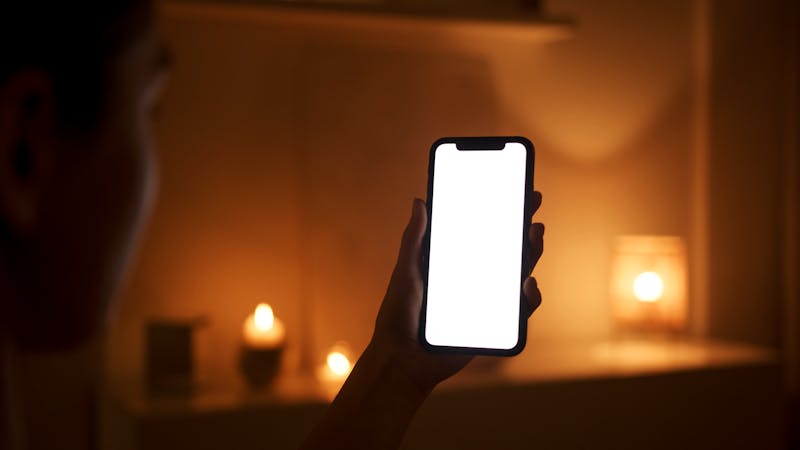
Executing Solid Color Cycles for Pixel Defects
The most effective method to identify dead or stuck pixels involves forcing every sub-pixel on the panel to illuminate independently and then turn completely off. We do not achieve this by browsing photos or watching videos. We achieve this by leveraging full-screen solid color fields.
Start by displaying a pure black image. In a dimmed room, any pixel that emits light—whether red, green, blue, or white—is a defect. A dead pixel appears as a permanent black dot even when the surrounding area is white, indicating the transistor failed to open. A stuck pixel, conversely, remains lit in one color regardless of the signal, suggesting the crystal is locked in an open state.
You should cycle through red, green, and blue fields individually. Why? Because a pixel might function correctly for two sub-components but fail on the third. A stuck blue sub-pixel might be invisible on a white background but glaringly obvious on a red field.
Carry out observation of the entire grid slowly. Do not rush. Move your eyes across the corners and the center. Some tools offer a "pixel walker" feature that moves a small box around the screen, which can help draw your attention to anomalies that static images might let your brain filter out. Our visual cortex is excellent at ignoring inconsistencies, so you must trick it into noticing the flaw.
If you detect even a single persistent anomaly, document it right away. Take high-resolution photos with another camera, ensuring the focus is sharp enough to show the colored dot against the solid background. This evidence becomes your primary asset when negotiating with support teams who might otherwise claim the issue is "within normal tolerance."

Unmasking Light Leakage and Backlight Bleed
While dead pixels are discrete point failures, light leakage is a structural issue involving the alignment of the LCD layers and the pressure applied by the bezel. This problem manifests as uneven brightness, often appearing as cloudy patches or bright streaks along the edges, particularly noticeable in the corners.
To perform detection of light leakage, you must create an environment with minimal ambient light. Turn off the room lights. Close the curtains. Set your monitor brightness to a typical usage level, perhaps 50% to 70%, rather than maximum, as max brightness can exaggerate issues that wouldn't bother you in real scenarios.
Display a dark gray or black test pattern. Look specifically at the edges where the screen meets the frame. Almost every IPS panel exhibits some degree of "IPS glow," which changes angle depending on where you sit. That is physics, not a defect. However, if you see bright white clouds that do not shift when you move your head, or if one corner is significantly brighter than the others regardless of viewing angle, you are looking at backlight bleed.
This inconsistency can ruin the experience for anyone doing photo editing, video grading, or gaming in dark environments. The contrast ratio collapses in those areas, turning deep blacks into muddy grays.
Some users argue that minor bleed is acceptable. Maybe for a secondary office monitor checking emails, that holds true. But if you paid premium prices for a display advertised with "uniform backlighting," accepting significant leakage means you are overpaying for a lower-tier product. Do not let support agents gaslight you into believing severe clouding is "normal variation." It often indicates poor assembly or excessive clamping pressure during manufacturing.
Leveraging Gradients and Grid Patterns
Solid colors catch the obvious stuff, but gradients expose banding and color uniformity issues that solid fields miss. When a monitor struggles to transition smoothly between shades, you see distinct steps or bands of color instead of a smooth fade. This is especially common in cheaper panels or those with poorly calibrated 6-bit+FRC drivers pretending to be 8-bit or 10-bit.
Run a grayscale gradient from pure black to pure white. Watch closely for sudden jumps in brightness. If you see distinct stripes, the panel or its controller is failing to render intermediate values accurately. For graphic designers and photographers, this trait makes precise color work nearly impossible without heavy calibration, and even then, the underlying bit-depth limitation remains.
Grid patterns serve another purpose: checking for geometry distortion and focus issues. While less common in modern digital panels than in old CRTs, some displays still suffer from slight non-uniformity in pixel shaping or alignment. A fine grid helps you verify that lines remain straight and consistent from edge to edge.
Use online tools that provide these specific patterns without compression artifacts. Avoid using JPEG test images, as compression noise can mimic banding or pixel defects, leading to false positives. Stick to lossless formats or dedicated web-based testers that generate the colors via CSS or Canvas APIs directly in the browser.

Documenting Flaws for Warranty Claims
Finding the defect is only half the battle. The other half involves convincing the manufacturer or retailer that the unit is indeed faulty and eligible for replacement. They rely on ambiguity to deny claims. Your job is to remove all ambiguity.
When you capture evidence, ensure the lighting conditions in your photos match the testing environment. Use a tripod or steady surface to prevent blur. If possible, include a reference object or a timestamp to prove the photos were taken recently.
Write a clear description of the issue. Instead of saying "the screen looks weird," state precisely: "Unit exhibits three stuck blue sub-pixels in the upper left quadrant visible on solid black backgrounds, as well as severe backlight bleeding in the bottom right corner obscuring detail in dark scenes." This language demonstrates that you have carried out detailed analysis and understand the technical characteristics of the failure.
Submit this documentation immediately. Do not wait. Return windows often span only 14 to 30 days. If you spend two weeks "getting used to" the monitor, you might wake up on day 29 to realize the return policy has expired, leaving you with no leverage.
The Cost of Skipping Validation
It is tempting to skip these tests. Who wants to spend an hour staring at red and blue screens when you just want to game or work? But consider the alternative: discovering a cluster of dead pixels six months from now, only to be told that the warranty requires five or more clustered defects for a claim, or that light leakage is not covered at all.
By investing a small amount of time upfront to perform comprehensive screening of your new hardware, you protect your investment. You ensure that the device you keep aligns with the quality standards you paid for.
Whether you are a professional relying on color accuracy or a gamer demanding immersion, your display is your primary window into the digital world. Do not settle for a cracked or leaking window. Test it hard, test it early, and if it fails, send it back without hesitation.
Prêt à tester vos paramètres ? Juste secondes.
Outils recommandés
Test Écran Tactile & Multi-touch
Outil pro pour écrans tactiles. Vérifiez le nombre de points de contact simultanés, la réactivité, et détectez les zones mortes ou les problèmes de tactile.
Test Décodage Vidéo - Performance 4K/8K
Testez les capacités de lecture vidéo de votre navigateur. Détectez les saccades, les pertes d'images (drop frames) et la désynchronisation audio/vidéo en 4K/8K.
Test Web Bluetooth & Scan Périphériques
Scannez les appareils Bluetooth à proximité via l'API Web Bluetooth. Testez la connexion, l'appairage et le transfert de données (si compatible).
Test de Notifications Push Web
Vérifiez si votre navigateur peut recevoir des notifications. Testez les permissions et envoyez des messages de test pour le débogage.
Test Webcam en ligne - Vérification Vidéo
Vérifiez rapidement le fonctionnement de votre caméra. Testez la netteté, la résolution et la mise au point. Idéal avant une réunion Zoom ou Teams.
Test Casque & Enceintes - Canaux Gauche/Droite
Outil professionnel pour tester la stéréo. Vérifiez l'équilibre gauche/droite, les basses et la distorsion de vos écouteurs ou haut-parleurs.