Why Your 4K Video Stutters: A Deep Dive into Browser Decoding Performance
You hit play on a 4K stream, expecting silky smooth motion, and instead get a slideshow of digital artifacts. The audio drifts out of sync. The cursor lags. It feels like your machine is choking, and in many cases, it literally is.
Most people blame the internet connection first. They run speed tests, reset routers, and swear their bandwidth is fine. And they are right. The bottleneck rarely sits in the network pipe anymore. The real culprit hides deeper, buried in how your browser handles the heavy lifting of decoding high-resolution video streams. When a browser fails to leverage hardware acceleration properly, it forces the CPU to perform software decoding for every single frame. That is a recipe for disaster when dealing with HEVC or AV1 codecs at 60 frames per second.
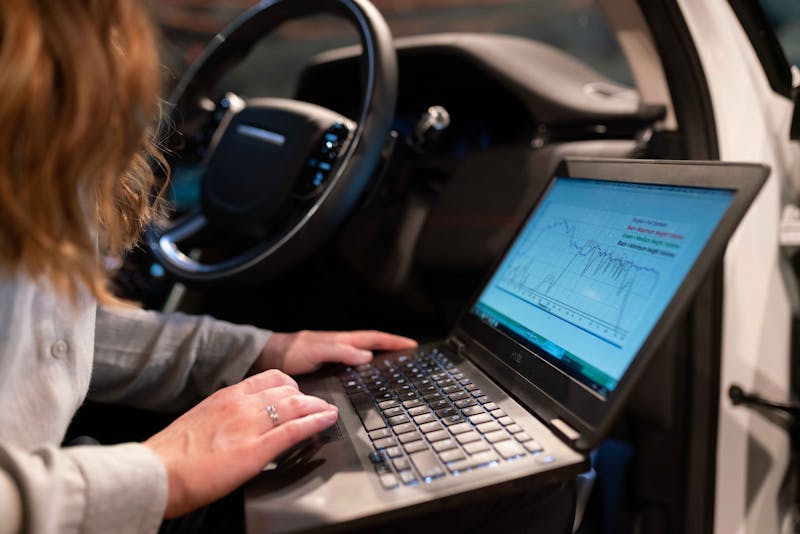
Let's talk about what actually happens under the hood. Modern browsers do not just "play" video; they carry out complex negotiation processes with your operating system and graphics driver. If that handshake fails, the browser falls back to a safe but sluggish mode where the central processor attempts to handle pixel data that was meant for the GPU. You see this as stuttering because the CPU simply cannot keep up with the sheer volume of mathematical operations required to decompress 8 million pixels roughly sixty times every second.
The underlying reason often traces back to codec support mismatches. You might have a powerful graphics card, yet your browser refuses to use it for specific formats. For example, older versions of Chrome or Firefox might lack native support for AV1 decoding on certain hardware generations, forcing a switch to software rendering. Meanwhile, Safari on macOS behaves differently, tightly coupling its decoding pipeline with Apple Silicon efficiencies that Windows-based browsers struggle to match without precise configuration.
Consider the role of hardware acceleration flags. These are not just optional toggles; they are the gatekeepers that determine whether your GPU participates in the rendering pipeline. When you disable hardware acceleration, either intentionally or due to a driver crash, the browser loses the ability to offload video decoding tasks. Consequently, the system must perform recovery actions by shifting the entire workload to the CPU cores. This shift creates immediate thermal throttling, which then reduces clock speeds, causing even more dropped frames. It is a vicious cycle that starts with a single misconfigured setting.
Drivers play an equally massive part in this equation. An outdated graphics driver often lacks the necessary instruction sets to decode modern codecs efficiently. NVIDIA, AMD, and Intel regularly release updates that patch specific decoding bugs or add support for new bitrate profiles. If you are running a driver from six months ago, your GPU might technically support 4K, but it fails to align with the latest encoding traits used by streaming platforms like YouTube or Netflix. The result? The browser detects the incompatibility and silently downgrades the decoding path to software mode.
How do you prove this is happening on your machine? Do not guess. Use the built-in diagnostics. In Chrome, navigate to chrome://gpu to inspect the status of video decoding. Look specifically for entries labeled "Video Decode." If you see "Software only" or "Disabled" next to your GPU name, that is your smoking gun. The browser has decided it cannot trust your hardware to handle the stream. Similarly, Firefox offers about:support, where you can verify if "Hardware Video Decoding" is marked as available.
Running a live benchmark provides concrete evidence. Load a high-bitrate 4K HDR test video while monitoring your task manager. Watch the CPU usage spike to 100% while the GPU utilization remains flat near zero. That disparity confirms the browser is bypassing the graphics card entirely. At the same time, check the frame drop counter in the browser's developer tools under the "Performance" or "Media" tab. A rising count of dropped frames alongside high CPU load indicates the system is failing to process incoming data fast enough to maintain the display refresh rate.
Solving this requires a methodical approach rather than random tweaking. First, ensure your graphics drivers are updated to the latest stable version provided by the manufacturer, not just the generic Microsoft update. Next, verify that hardware acceleration is enabled in your browser settings. If it is already on but still failing, try resetting the GPU cache or disabling conflicting extensions that might intercept video streams. Some ad blockers or privacy tools interfere with the decryption keys needed for DRM-protected content, causing the decoder to stall.
For power users managing multiple systems, consider the impact of energy saving modes. Laptops often throttle GPU performance when running on battery power, effectively capping the decoding capability regardless of driver status. Switching to "High Performance" mode in your OS power settings can make the difference between a watchable stream and a unviewable mess. This is especially true for hybrid graphics setups where the system switches between integrated and discrete GPUs. Sometimes the browser gets stuck using the weaker integrated chip because the handover logic failed during session initialization.

There is also the matter of container formats and codec profiles. Not all 4K videos are created equal. A 4K stream encoded with the Baseline profile of H.264 decodes easily on almost anything. However, a 4K stream using the High 10 profile of HEVC with 10-bit color depth demands significantly more computational resources. If your hardware lacks dedicated fixed-function decoding blocks for that specific profile, the driver must emulate the process via shaders, which is far less efficient. This nuance explains why some 4K videos play fine while others stutter on the exact same machine.
When troubleshooting client reports, ask them to check the resolution and codec information directly from the player stats. Most platforms allow you to press a key combination (like Shift+D on YouTube or Ctrl+Shift+D on Netflix) to reveal real-time metadata. If the reported codec does not match the hardware capabilities listed in the browser's GPU report, you have identified the mismatch. The solution then involves forcing a different codec via browser flags or installing system-wide codec packs that extend the OS-level decoding matrix, although the latter approach carries its own stability risks.
Do not overlook the thermal envelope of your device. Even with perfect configuration, sustained 4K decoding generates heat. If your laptop fans are clogged or the thermal paste has dried out, the CPU and GPU will throttle to prevent damage. This thermal throttling manifests as sudden frame drops after a few minutes of playback. Cleaning vents and ensuring proper airflow can restore performance to expected levels without changing a single line of code or config file.
Ultimately, smooth 4K playback relies on a fragile chain of dependencies: correct drivers, proper browser flags, adequate cooling, and compatible codec profiles. Break any link in that chain, and the experience collapses. By carrying out systematic checks of your GPU status, monitoring resource allocation in real time, and understanding the specific demands of modern video codecs, you can move past vague complaints of "slow internet" and address the actual technical barriers. It is about making the hardware work as intended, ensuring that every pixel reaches your screen exactly when it should.
Ready to test your settings? Just seconds.
Recommended Tools
Mic Tester — #1 Free Online Microphone Test & Recorder
The most trusted free online microphone test. Instantly check your mic for sound quality, echo, and background noise. Real-time waveform visualization, one-click recording, and playback. No install required. 100% private.
Mobile Sensor Test - Gyroscope & Accelerometer
Comprehensive check for mobile sensors. Read real-time data from gyroscopes, accelerometers, and orientation sensors to verify motion sensitivity.
Web Bluetooth Scanner & Connection Test
Use the Web Bluetooth API to scan for nearby devices. Test browser connectivity, pairing, and data transfer capabilities (requires compatible hardware).
Webcam Test - Check Camera Resolution & Focus
Quickly verify if your webcam is working. Check resolution, focus, and clarity. Supports mirroring and snapshot capture. Essential tool before Zoom/Teams calls.
Ambient Light Sensor (Lux) Test
Read real-time illuminance data (Lux) from your device's light sensor. Test auto-brightness functionality and monitor surrounding light intensity.
Video Capability Test - 4K/8K Decoding Performance
Analyze your browser and device's video decoding performance. Supports 4K/8K playback testing to identify stuttering, dropped frames, artifacts, and A/V sync issues.