Stop the Lag: A Practical Guide to Diagnosing Network Instability for Gamers and Remote Workers
Your video call freezes right as the client asks a critical question. Your character teleports through a wall in the middle of a ranked match. The screen stutters, audio clips, and suddenly you are the person everyone blames for "bad connection." It feels random. It feels unfair. But it is rarely random.
Most people run a speed test, see a big number like "500 Mbps," and assume everything is fine. That number is a lie when it comes to stability. High bandwidth does not guarantee a smooth experience. What you are actually fighting is network instability, a messy combination of high latency, jitter, and packet loss that standard ISP dashboards love to hide.
We need to stop guessing and start measuring the real metrics that dictate your digital reality.
The Myth of Bandwidth vs. The Reality of Stability
Internet Service Providers sell you throughput. They want you to believe that downloading a 4K movie in ten seconds means your Zoom call will be crystal clear. These are two completely different physical behaviors on the wire.
Bandwidth is how much water can flow through a pipe. Stability is whether that water flows smoothly or arrives in violent, unpredictable bursts.
When you stream a movie, your device buffers. It hoards data ahead of time so a brief hiccup doesn't matter. When you game or join a live conference, there is no buffer. You are living in the present millisecond. If a packet arrives late, it is useless. If it gets dropped entirely, the application has to ask for it again, creating that dreaded pause or skip.

You might have a gigabit connection and still suffer from terrible performance because the route your data takes is congested, noisy, or physically damaged. We need to look past the marketing numbers and perform diagnosis of the actual journey your data packets take.
Decoding the Trinity: Latency, Jitter, and Packet Loss
To fix the problem, you must first carry out identification of the specific symptom. These three metrics form the holy trinity of network health, yet they are often conflated.
Latency: The Round-Trip Time
Latency, often called Ping, represents the time it takes for a signal to travel from your machine to a server and bounce back. We measure this in milliseconds (ms).
Think of it as conversation delay. Low latency means you speak and the other person hears you instantly. High latency means you speak, wait half a second, and then they hear you. In gaming, this is the difference between shooting an enemy before they turn the corner and getting killed because the server thinks you are still standing in the open. For remote workers, high latency creates that awkward overlap where both parties talk at once because neither heard the other stop.
A ping under 20ms is elite. Anything over 100ms starts to feel sluggish. Over 200ms? You are basically operating in slow motion.
Jitter: The Consistency Killer
If latency is the average travel time, jitter is the variance. It measures how much that travel time fluctuates from packet to packet.
Imagine driving on a highway. Latency is your average speed. Jitter is whether you are cruising at 60mph consistently or slamming on the brakes and accelerating wildly every few seconds. Even if your average speed is good, the jerky ride makes passengers nauseous.
Network applications hate jitter. Voice over IP (VoIP) and real-time gaming engines expect packets to arrive at steady intervals. When jitter spikes, the receiving device has to buffer incoming data to smooth it out, which introduces lag, or it simply drops frames, causing stuttering video and robotic audio. High jitter is often more destructive than consistently high latency.
Packet Loss: The Data Black Hole
Packet loss occurs when data sent from your computer never reaches its destination. It vanishes into the ether.
This happens when routers are overwhelmed and drop queues, when Wi-Fi signals interfere with each other, or when physical cables are degraded. When a packet gets lost, the protocol usually demands a retransmission. Your computer says, "I didn't get that piece of the puzzle," and asks the server to send it again. During that waiting period, your screen freezes or your audio cuts out completely.
Even 1% packet loss can ruin a competitive shooter match. For video calls, it manifests as pixelated blocks or frozen faces.

Executing a Comprehensive Diagnostic Workflow
Stop relying on those flashy web-based speed tests that load ads and give you a single score. They are too abstract. We need to get our hands dirty with command-line tools that show us the raw truth of the connection.
Step 1: Establish a Baseline with Continuous Ping
Open your terminal or command prompt. We are going to leverage the ping command, but not just once. We need a continuous stream of data to observe behavior over time.
On Windows, execute:
ping -t 8.8.8.8
On macOS or Linux, the default ping is already continuous:
ping 8.8.8.8
Let this run for at least two minutes. Watch the output. Do you see consistent reply times? Or do you see occasional spikes where the time jumps from 20ms to 300ms? Do you see "Request timed out"? Those timeouts are packet loss.
If you see wild swings in the millisecond values, you are dealing with jitter. If you see regular timeouts, you have packet loss. Write these observations down. This is your evidence.
Step 2: Map the Route with Traceroute
Sometimes the issue isn't your house; it's the path across the internet. To carry out investigation of where the breakdown happens, we use traceroute (or tracert on Windows).
Run:
tracert 8.8.8.8 (Windows)
traceroute 8.8.8.8 (Mac/Linux)
This command lists every hop (router) your data passes through to reach the destination. Look at the latency numbers for each hop.
Does the latency jump massively at hop 3? That is likely your ISP's local node. Does it spike at hop 10, halfway across the country? That is an inter-network congestion point you cannot control directly, but knowing it exists helps you argue with your provider. If the first hop (your router) already shows high latency or loss, the problem is inside your home network.
Step 3: Isolate Wi-Fi Interference
Wireless connections are convenient, but they are also fragile. Radio frequencies are crowded. Microwaves, baby monitors, and neighbors' routers all fight for space.
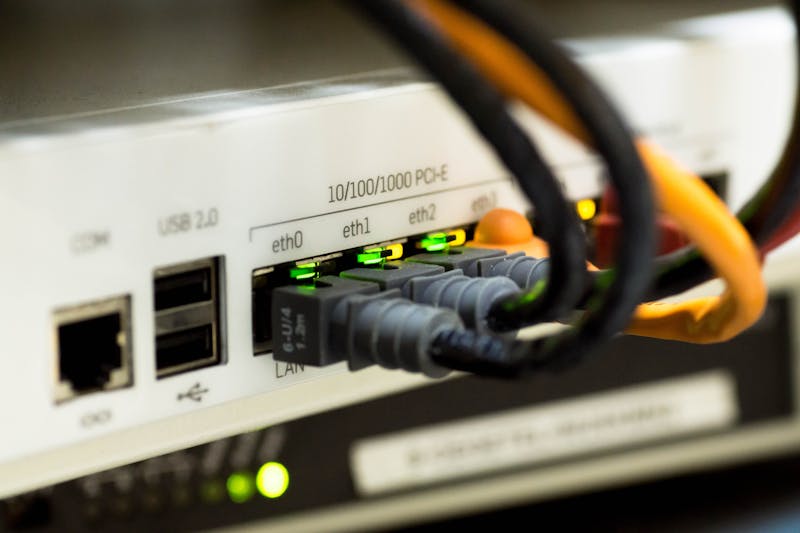
To verify if Wi-Fi is the culprit, disconnect from wireless and plug an Ethernet cable directly into your modem or router. Repeat the ping test.
If the jitter disappears and packet loss drops to zero when wired, your Wi-Fi environment is the underlying reason for the instability. No amount of ISP upgrading will fix radio interference. You may need to switch to a 5GHz band, change your channel, or simply accept that critical work and ranked games require a physical cable.
Interpreting Live Metrics for Actionable Results
Collecting data is only half the battle. You must perform interpretation of what the numbers tell you about your specific situation.
Scenario A: High Latency, Low Jitter, Zero Loss Your connection is stable but slow. This often points to routing inefficiencies. Your data is taking a scenic route. Contact your ISP and share your traceroute logs. Ask them to optimize the route or check for peering issues with the destination server.
Scenario B: Normal Latency, High Jitter Your average speed looks fine, but the experience is choppy. This is classic congestion or bufferbloat. It happens when your router tries to handle too much traffic at once and fails to prioritize real-time packets. Check if someone else is downloading huge files or streaming 4K video while you are trying to work. Implement Quality of Service (QoS) rules on your router to prioritize gaming or VoIP traffic.
Scenario C: Intermittent Packet Loss Packets are vanishing. If this happens only on Wi-Fi, move closer to the access point or reduce interference. If it happens on Ethernet, inspect your cables. A damaged Cat5e cable can cause intermittent disconnects that look like packet loss. Replace the cable. If the loss persists on a direct modem connection, your ISP line quality is degraded, possibly due to noise on the copper line or fiber signal attenuation. Demand a technician visit.
Stabilizing Your Digital Environment
Once you have pinpointed the root cause, you can make stabilization possible.
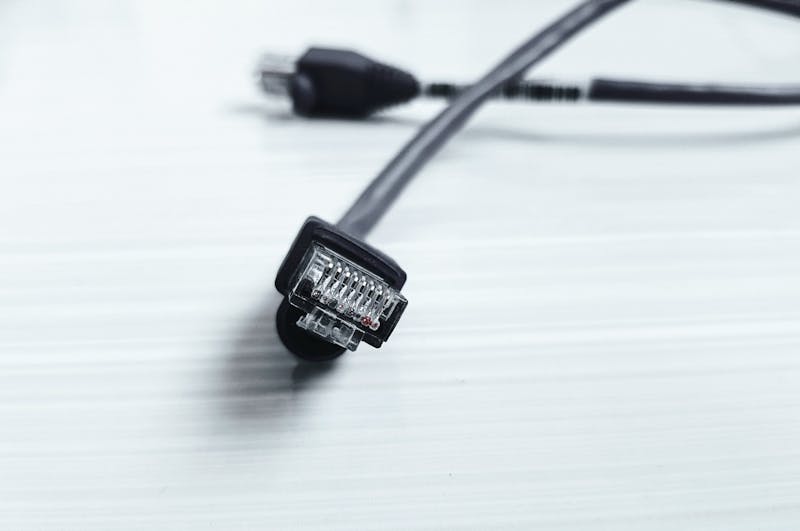
For remote workers, reliability trumps raw speed. Configure your router to reserve bandwidth for your workstation. Use wired connections whenever humanly possible. A twenty-dollar Ethernet cable often solves problems that a two-hundred-dollar mesh system cannot touch.
Gamers should look into geographically closer servers. Sometimes the lag isn't your fault; the game server is just too far away. Use tools to find servers with the lowest ping relative to your location. Also, ensure no background updates are eating your bandwidth. Steam, Windows Update, and cloud backups love to chew up bandwidth silently. Schedule them for off-hours.
Don't let the invisible culprit ruin your productivity or your win rate. Network instability is solvable if you stop looking at the wrong numbers. Carry out these diagnostics, understand the behavior of your connection, and take control of your infrastructure. The difference between frustration and flow is often just a few milliseconds and a solid cable.
Ready to test your settings? Just seconds.
Recommended Tools
Headphone & Speaker Test - Left/Right Stereo Check
Professional audio output test. Accurately check Left/Right stereo balance, bass response, and distortion on headphones and speakers to ensure optimal sound quality.
Ambient Light Sensor (Lux) Test
Read real-time illuminance data (Lux) from your device's light sensor. Test auto-brightness functionality and monitor surrounding light intensity.
Online GPS & Geolocation Accuracy Test
Retrieve current device coordinates. Test the accuracy of GPS and IP-based geolocation. View latitude, longitude, altitude, and position update speed.
Webcam Test - Check Camera Resolution & Focus
Quickly verify if your webcam is working. Check resolution, focus, and clarity. Supports mirroring and snapshot capture. Essential tool before Zoom/Teams calls.
Screen Sharing Test - Browser Capabilities
Simulate an online meeting environment to test browser screen sharing permissions and quality. Verify window sharing, full-screen sharing, and system audio capture.
Network Stability & Latency (Ping) Test
Test your internet connection stability in real-time. Monitor Ping latency, Jitter, and Packet Loss. Quickly diagnose lag in gaming or buffering in videos.