Silent Phone? How to Diagnose and Fix Vibration Motor Issues with a Simple Online Test
You tap the screen. Nothing happens. No buzz. No hum. Just dead silence where a tactile confirmation should be.
It is frustrating. You immediately suspect the worst: a fried vibration motor, a loose connector inside the chassis, or perhaps water damage that finally caught up with the device. Before you dismantle your phone or hand over cash to a repair shop, stop. Pause. The underlying reason for this silence is often not hardware failure at all. More frequently, it is a software glitch, a misconfigured setting, or an OS update that broke the communication link between the system and the haptic engine.
We need to carry out isolation of the problem right away.
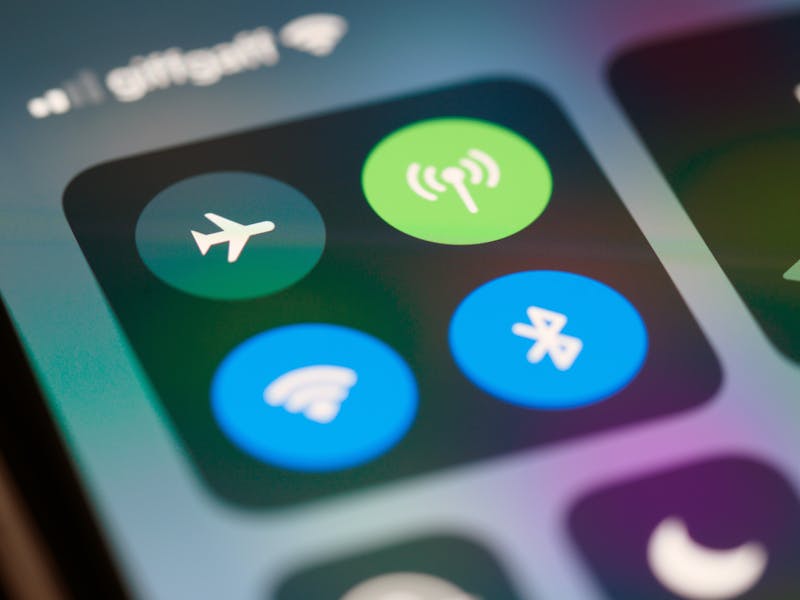
The most efficient way to perform diagnosis of this specific issue involves leveraging a web-based Haptics Test. These tools bypass the complex layers of your operating system's native settings menus and attempt to trigger the vibration actuator directly through the browser's API. If the browser can make the phone shake, your hardware is fine. The fault lies in your configuration. If the browser fails to generate any movement, then—and only then—do we start worrying about physical repairs.
Let's talk about how these tests actually work.
Modern browsers come with capabilities to interact with the device's vibration hardware via the Vibration API. When you visit a testing page, the site sends a command array to the OS. This array tells the motor exactly how long to spin and when to stop. It is a direct line of communication. By carrying out interaction with this API, we can determine if the pathway from software to hardware remains open.
You will typically encounter three distinct patterns during these diagnostics.
First, there is the continuous vibration. This command tells the motor to run without stopping for a set duration, usually several seconds. It is brutal but effective. If your motor is weak or partially seized, a continuous run might reveal a stuttering sensation or a faint whine instead of a solid buzz. This helps identify motors that are dying slowly rather than failing outright.
Second, we have the pulse pattern. Here, the test script instructs the device to vibrate in short, sharp bursts. On-off. On-off. This mimics the feeling of a standard notification. Many users find their phones handle continuous vibration fine but fail completely on pulses. Why? Because the driver responsible for rapid state changes might be corrupted, while the basic power delivery remains intact.
Third, some advanced testers allow you to perform configuration for custom sequences. You define the rhythm. Maybe you need a long buzz followed by two short ticks. Creating these custom patterns lets app developers validate specific haptic designs, ensuring their user interface feedback aligns with the intended experience.
So, how do you execute this workflow?
Start by opening your mobile browser. Navigate to a reputable haptic testing site. Do not download an app for this; installing new software introduces variables we do not need right now. We want to test the baseline hardware capability using the simplest possible vector. Once the page loads, look for the "Test Vibration" button. Tap it.
If the phone shakes, celebrate quietly. Your motor works. The issue is definitely within your system settings. Go back and check your "Sound & Haptics" menu. Ensure that "Vibrate on Silent" is actually enabled. Verify that "Do Not Disturb" isn't swallowing your alerts. Sometimes, a recent OS update resets these preferences to default, effectively muting your tactile feedback while leaving the ringer loud. You simply need to perform recovery of your preferred settings.
But what if nothing happens?
Try a different browser. Chrome might behave differently than Safari or Firefox due to how each engine implements the Vibration API. If one browser triggers the motor and another does not, the problem is isolated to that specific application's permissions or cache. Clear the data for the non-working browser and try again.
If no browser can make the device vibrate, the situation looks grim. However, before you declare the hardware dead, consider the power state. Is your battery critically low? Some devices automatically disable the vibration motor to conserve energy when the charge drops below a certain threshold. Plug the phone in. Wait for it to reach a healthy charge level. Then, attempt to carry out the test procedure once more.

There is also the matter of accessibility settings. On both iOS and Android, features designed to help users with motor impairments can sometimes interfere with standard haptic output. Check if "Reduce Motion" or similar traits are active. These settings aim to minimize distractions, which includes killing the vibration motor. Disabling them might instantly restore functionality.
For the developers reading this: if you are building an app and users report missing haptics, do not assume their phones are broken. Your code might be firing events too rapidly, causing the OS to throttle the motor to prevent overheating. Or perhaps you are triggering vibrations while the app is in the background, a context where many operating systems block haptic feedback by design. You must ensure your implementation aligns with the platform's lifecycle rules. Use the online test tools to verify that the device itself is capable, then scrutinize your own event listeners.
We often overlook the physical nature of the component. The vibration motor is a mechanical part. It has moving weights or piezoelectric elements that flex. Over time, dust accumulates. Connectors oxidize. A hard drop can dislodge the tiny ribbon cable connecting the motor to the logic board. If you have ruled out every software angle—settings, browsers, battery levels, accessibility toggles—and the online test still yields zero movement, the likelihood of physical damage increases to a significant extent.
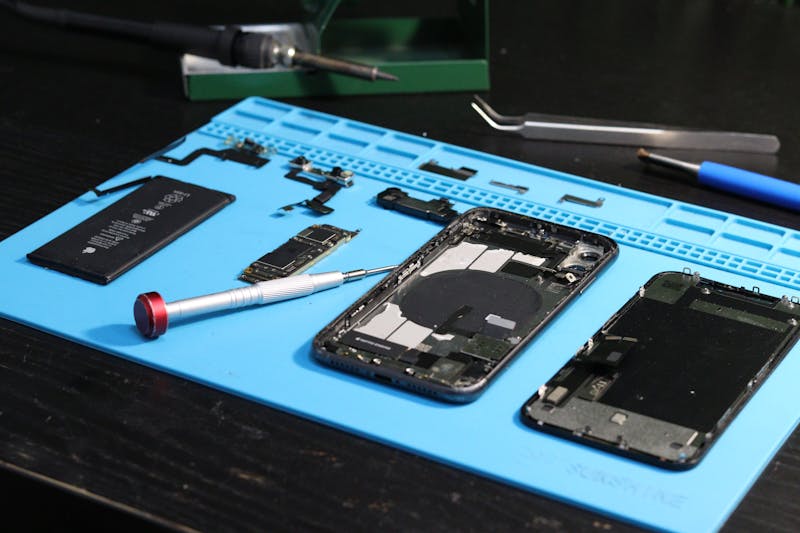
At this stage, opening the device becomes the logical next step. You would need to disconnect the battery, remove the rear panel, and inspect the connector seating. Reseating the connector often solves the issue if the connection was merely loose. If reseating fails, replacement is the only path forward. Motors are inexpensive. Labor is not. Doing this yourself saves money, provided you possess the necessary tools and steady hands.
Do not ignore the subtle signs. A motor that feels weaker than it used to be is warning you. It is struggling. The online test can quantify this subjectively. Compare the intensity of the buzz against a known-good device of the same model. If yours feels sluggish, plan for a replacement soon. Waiting until it stops completely leaves you blind to notifications in the interim.
This diagnostic approach saves time. It prevents unnecessary trips to repair shops where technicians might charge a diagnostic fee just to tell you to check your settings. It empowers you to distinguish between a $0 fix (toggling a switch) and a $50 fix (replacing a part). That distinction matters.
The technology behind haptic feedback continues to evolve. We are seeing linear resonant actuators replace old eccentric rotating mass motors, offering sharper, more precise clicks. Yet, the fundamental troubleshooting logic remains unchanged. Isolate the variable. Test the hardware directly. Eliminate software causes. Only then address the physical components.
Keep this workflow in mind. The next time your phone goes silent when it should be buzzing, you will know exactly how to proceed. You will not panic. You will not guess. You will run the test, interpret the result, and apply the correct solution. That is the difference between reacting to a problem and managing it with precision.
Ready to test your settings? Just seconds.
Recommended Tools
Screen Sharing Test - Browser Capabilities
Simulate an online meeting environment to test browser screen sharing permissions and quality. Verify window sharing, full-screen sharing, and system audio capture.
Mobile Sensor Test - Gyroscope & Accelerometer
Comprehensive check for mobile sensors. Read real-time data from gyroscopes, accelerometers, and orientation sensors to verify motion sensitivity.
Headphone & Speaker Test - Left/Right Stereo Check
Professional audio output test. Accurately check Left/Right stereo balance, bass response, and distortion on headphones and speakers to ensure optimal sound quality.
Webcam Test - Check Camera Resolution & Focus
Quickly verify if your webcam is working. Check resolution, focus, and clarity. Supports mirroring and snapshot capture. Essential tool before Zoom/Teams calls.
Dead Pixel & Light Leakage Test
Use solid colors, gradients, and grids to examine screens for dead pixels, stuck pixels, and backlight bleeding. Essential for checking new monitors and phones.
Touch Screen Test - Multi-Touch Detector
Professional touchscreen testing tool. Detect multi-touch points and response speed. Draw lines to identify dead zones, ghost touches, or sensitivity issues.