The Silent Meeting Killer: How to Master Screen Sharing Before Your Next Big Presentation
You're three minutes from kickoff. The stakeholder list is stacked. You hit "Share Screen," and nothing happens. Or worse, the video feeds your desktop wallpaper while your crucial demo window sits invisible in the background. The silence on the other end isn't just awkward; it erodes trust right away.
We treat screen sharing like a commodity feature, assuming it just works because the browser says it supports getDisplayMedia. That assumption is a trap. Under the hood, you are negotiating a complex handshake between the operating system, the browser sandbox, and the remote peer's decoding pipeline. When that handshake stutters, your professional reputation takes the hit.
Stop gambling with live audiences. The only way to carry out management of these risks is to perform rigorous dry runs in an environment that mimics the chaos of real-world network conditions.
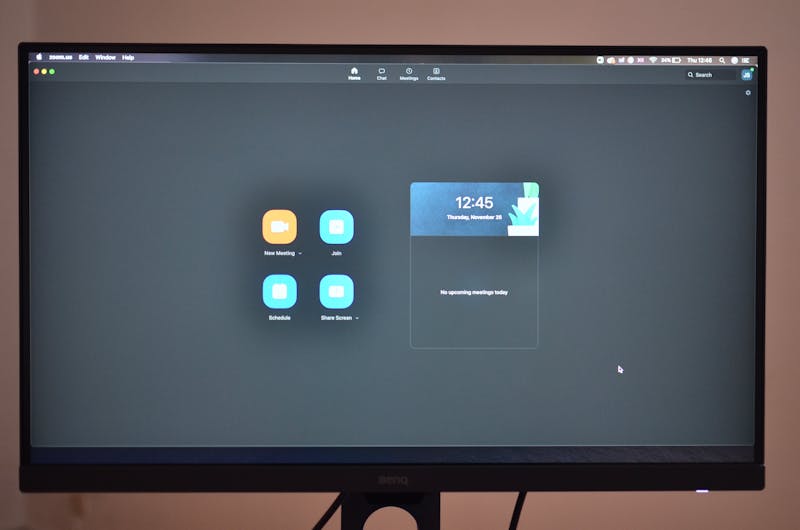
The Permission Labyrinth
It starts before you even click the button. Modern browsers, in their zeal to protect user privacy, have constructed a fortress around screen capture capabilities. If you are developing a custom solution or troubleshooting a stubborn corporate setup, you need to understand that the browser does not simply "grab" the screen. It requests permission, and the OS intervenes.
On macOS, for instance, Safari and Chrome cannot perform screen capture unless you explicitly grant them accessibility permissions in System Settings. Miss this step, and the API call returns a null stream every single time. It's not a bug in your code; it's a security gate you failed to open. Windows behaves differently, often presenting a native picker dialog that overrides custom UI hints you might have built.
When you carry out interaction with the navigator.mediaDevices.getDisplayMedia API, you aren't just asking for video. You are triggering a system-level modal that forces the user to make a choice. If your application logic assumes a direct path to the stream without handling the rejection state or the delay caused by user hesitation, your interface will hang. You must implement error handling that accounts for the user clicking "Cancel" or selecting the wrong window.
Consider the audio aspect. Capturing system audio is a separate beast entirely. Many users select "Current Tab" instead of "Entire Screen" because they don't realize the former is the only path to clean internal audio without feedback loops. If your pitch relies on a video clip playing from your browser, and you shared the wrong source, your audience hears nothing. You need to verify audio track attachment explicitly. Check if the MediaStream object returned contains an audio track before you proceed to attach it to the peer connection.
Simulating the Disaster Zone
Testing on a gigabit fiber connection in your home office tells you nothing about how your presentation will survive on a hotel Wi-Fi network. The underlying reason most demos fail is not software defects but bandwidth throttling and packet loss. You must leverage diagnostic tools to simulate these hostile environments before you go live.
Don't just stare at your local preview. Use the DevTools Network tab to throttle your connection to "Slow 3G" or create a custom profile with high latency and significant packet loss. Then, attempt to share a high-motion window, like a scrolling dashboard or a video player. Watch what happens to the frame rate. Does the video freeze completely? Does the audio desynchronize?
This process allows you to identify the breaking point of your codec configuration. If you are using VP8, it might choke under pressure where VP9 or H.264 would maintain a stable, albeit lower resolution, stream. By relying on these simulations, you can adjust your bitrate constraints dynamically. Instead of pushing a constant 5Mbps stream that collapses instantly when the network dips, configure your sender to adapt aggressively.
Run a loopback test. Join the meeting room with two different devices on the same network, then introduce artificial lag. Share your screen from Device A and watch it on Device B. This setup reveals issues that single-device testing hides, such as audio echo cancellation failures or color space mismatches that make your text unreadable. You might discover that your font rendering looks crisp locally but turns into a pixelated mess when compressed for transmission. That is a fixable problem now; later, it is a career-limiting move.

The Three-Step Verification Workflow
Efficiency demands a repeatable process. Do not wing it. Adopt this three-step workflow to perform verification of your entire sharing chain.
Step 1: Validate Window Selection Logic Before the meeting, open the specific application or browser tab you intend to share. Initiate the share dialog and deliberately select that exact window. Verify that the boundaries are correct. Does the sharing include the window decorations? If you are presenting code, do the line numbers get cut off? Many presenters share a browser tab only to have their URL bar or bookmarks distract the audience. Crop your view mentally, then verify it visually. If you are using a multi-monitor setup, ensure the OS distinguishes between Screen 1 and Screen 2 correctly. Confusion here leads to sharing your private Slack messages instead of the slide deck.
Step 2: Stress Test Full-Screen Transitions Presentations often involve toggling full-screen mode. This action triggers a resize event that can momentarily black out the stream or cause the encoder to reset. Perform a full-screen entry and exit cycle while recording the output locally or watching the peer feed. Does the frame drop recover quickly? Does the aspect ratio distort? Some browsers struggle to re-negotiate the media constraints when the viewport dimensions change drastically. If you spot a glitch, disable hardware acceleration in the browser settings as a temporary workaround, or advise your team to avoid full-screen toggles during critical moments.
Step 3: Audio Clarity and Echo Checks Voice is the anchor of your presentation. If the video freezes, people wait. If the audio cuts out, they leave. Plug in the headset you plan to use. Run a sound check where you speak while playing audio from the shared source. Listen for that dreaded screech of feedback. If you hear it, your system is routing the output back into the input. Adjust the microphone sensitivity or switch the input device explicitly in the meeting software settings. Do not rely on "Auto." Auto fails when you need it most. Speak at your normal presentation volume and ask a colleague to rate your clarity on a scale of one to ten. If they hesitate, tweak your EQ settings or move the mic.
The Human Element in Technical Delivery
We obsess over codecs and bitrates, yet the most common failure point remains human error. You prepared the tech, but did you prepare the context? Closing unnecessary tabs isn't just about saving RAM; it's about removing the temptation to accidentally click away from your demo. Notifications are the enemy. A pop-up from your email client appearing over your financial chart destroys credibility faster than any buffer lag.
Turn on "Do Not Disturb" mode at the OS level. Disable chat previews. Hide your desktop icons. These small actions reduce the cognitive load on your encoder and eliminate visual noise. When you carry out the act of sharing, you are broadcasting your entire digital workspace. Treat it like a stage. Sweep the floor before the curtain rises.
There is also the matter of empathy for the viewer. High-resolution screens look amazing on your 4K monitor but can appear tiny and illegible on a participant's laptop or tablet. Increase your browser zoom level to 125% or 150% before sharing. What feels slightly large to you ensures readability for them. This simple adjustment demonstrates that you understand the constraints of your audience's devices.
Final Thoughts on Reliability
Technical glitches happen. Networks fluctuate. Browsers update and break things overnight. But catastrophic failure is usually optional. It stems from a lack of preparation and a misunderstanding of how screen sharing actually functions beneath the surface.
By leveraging simulation tools, respecting OS permission models, and executing a disciplined verification routine, you shift the odds heavily in your favor. You stop reacting to crises and start preventing them. The goal isn't perfection; it's resilience. When the network hiccups, you know exactly why, and you have a contingency plan ready to deploy.
Next time you face a high-stakes presentation, do not just hope for the best. Perform the work. Test the edges. Break it in private so it holds up in public. Your audience won't notice the flawless engineering behind the scenes, but they will certainly remember the smooth delivery. And that is the only metric that matters.
Ready to test your settings? Just seconds.
Recommended Tools
HDR Display Capability Test
Check if your monitor or mobile screen supports HDR (High Dynamic Range). Visually compare SDR vs. HDR colors and test screen brightness and color depth.
Video Capability Test - 4K/8K Decoding Performance
Analyze your browser and device's video decoding performance. Supports 4K/8K playback testing to identify stuttering, dropped frames, artifacts, and A/V sync issues.
Touch Screen Test - Multi-Touch Detector
Professional touchscreen testing tool. Detect multi-touch points and response speed. Draw lines to identify dead zones, ghost touches, or sensitivity issues.
Ambient Light Sensor (Lux) Test
Read real-time illuminance data (Lux) from your device's light sensor. Test auto-brightness functionality and monitor surrounding light intensity.
Screen Refresh Rate (Hz) Test
Instantly check your screen's real-time refresh rate (FPS). Verify if 120Hz, 144Hz, or 240Hz high refresh modes are active and check for smooth motion.
Mobile Sensor Test - Gyroscope & Accelerometer
Comprehensive check for mobile sensors. Read real-time data from gyroscopes, accelerometers, and orientation sensors to verify motion sensitivity.