Why Your GPS is Wrong: A Practical Guide to Testing and Fixing Location Accuracy
Your map shows you floating in a river when you are actually standing on dry pavement. The blue dot jumps three blocks in a single ping. It happens constantly, and blaming the satellite constellation is usually a distraction. The underlying reason for GPS drift rarely sits in the upper atmosphere. It sits in permission layers, radio interference, or poorly calibrated fallback logic. Let us carry out a breakdown of why your positioning stack fails, and how you perform recovery before shipping another feature that depends on location data.
Most developers assume location payloads flow directly from space to the browser or native runtime. That assumption completely misses how modern devices actually carry out position resolution. Smartphones and desktops employ a layered strategy. They leverage GNSS radios first, naturally, but the moment line-of-sight weakens, the operating system starts pulling from cellular towers as well as nearby Wi-Fi access points, then finally falls back to IP-based geolocation databases. IP routing tables offer city-level guesses at best. Relying on those for precision work will ruin your metrics right away.
You must carry out examination of which data source feeds your application. Chromium browsers, WebKit engines, and native SDKs return an accuracy value measured in meters. That number tells you the expected radius of error, not the exact truth. When the reading spikes past fifty meters, the device has already switched away from satellite triangulation. Check the source indicator in your browser dev tools or native system logs. If it reads "network" or "approximate," stop trusting the coordinates for anything beyond broad regional filtering.
Mobile operating systems aggressively restrict background tracking. Apple and Google both enforce location permission states that shift over time based on user behavior. If you request WhenInUse but your background service tries to poll coordinates during a screen-off state, the OS will return a stale cache or block the call entirely. You must carry out configuration of foreground service flags as well as background execution limits if you want continuous tracking to survive memory pressure.
Privacy toggles cause silent failures that look like network bugs. iOS introduced "Approximate Location" as a user-facing switch. When enabled, the system deliberately introduces mathematical noise into latitude and longitude values. The coordinates still look syntactically valid, but the altitude calculation drifts, and the timestamp stops updating at meaningful intervals. I have seen countless engineers spend hours debugging WebSocket latency while the actual root cause was a simple permission slider. Verify the accuracyAuthorization state on iOS or run checkSelfPermission on Android before assuming your code handles positioning correctly.
Guesswork fails in navigation apps. You need hard numbers. Grab a diagnostic utility like GPS Test on Android or CoreLocation on iOS, then carry out validation of the satellite lock count, carrier-to-noise ratio (CNR), and dilution of precision (DOP). Low DOP values mean better geometry. High values indicate the satellites are clustered in one part of the sky, which forces the receiver to extrapolate your location from weak angles.
Here is a concrete workflow. Open your device settings, disable Wi-Fi scanning, walk to an open sky area, and monitor the update frequency. Real GNSS hardware should push coordinate updates once per second under normal conditions. If your app logs only refresh every fifteen to thirty seconds, something is actively throttling the signal. Battery optimization routines frequently restrict locationManager.requestLocationUpdates() or the equivalent navigator.geolocation.watchPosition() callback interval. Override power limits during testing, then carry out comparison of the reported speed against actual movement. A stationary phone should not report three meters per second of motion unless multipath reflection from glass buildings is bouncing signals around.

Browser implementations handle geolocation differently. Chrome respects high-accuracy flags by enabling Wi-Fi and Bluetooth scanning alongside GPS. Safari on macOS restricts this heavily. You cannot force satellite mode from the frontend. Your code must gracefully degrade. Instead of throwing hard errors on timeout, carry out implementation of a fallback chain that queries IP geolocation as a secondary measure while warning the user about reduced precision.
When you make use of the navigator.geolocation object, always request the enableHighAccuracy: true parameter. At the same time, set a reasonable maximumAge value. If you allow cached positions to persist for hours, your dashboard will display phantom movements that happened yesterday. Carry out clearing work for old data aggressively. Log the raw payload alongside the parsed coordinates so you can trace drift patterns in your telemetry pipeline. Store the coords.heading, coords.altitude, and timestamp fields directly. Altitude often reveals hardware switching faster than latitude shifts do.
Geofencing triggers fail when the boundary radius overlaps with the reported accuracy margin. If your work check-in zone uses a ten-meter radius but the device reports thirty meters of uncertainty, the state will flap between inside and outside continuously. You need to introduce hysteresis logic. Carry out execution of entry confirmation only when the confidence interval sits well inside the polygon for multiple consecutive polls. Trigger an exit event only after the accuracy circle fully clears the boundary.
CORS issues sometimes block location requests entirely on self-hosted setups. Secure origins are mandatory. HTTP deployments will outright deny access to Geolocation APIs. Migrate to HTTPS immediately. Configure strict referrer policies so third-party scripts cannot intercept location payloads. Audit your service worker fetch handlers as well. Intercepted network calls can strip geolocation headers or delay callback execution.
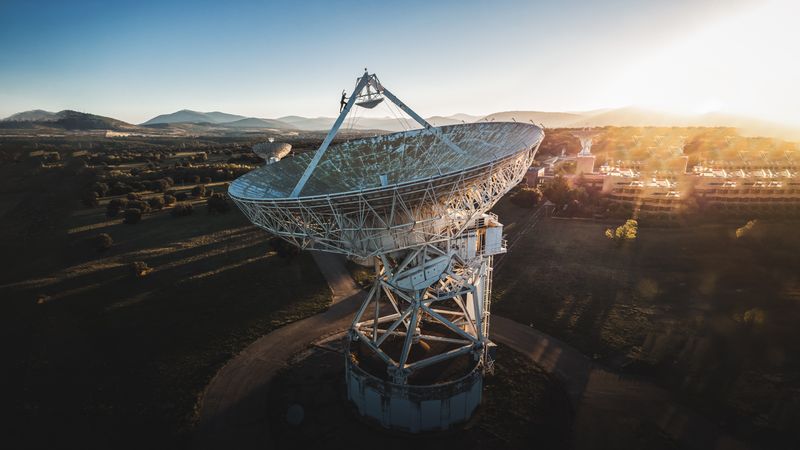
Field testing beats simulated routes every time. Emulators spoof perfect signals. Real phones deal with concrete, weather, and cheap battery cases that act as partial Faraday cages. Run actual drives. Mount the device on a dashboard. Record raw logs alongside a dedicated GNSS receiver for reference comparison. You will spot the exact moment multipath interference corrupts your timestamp alignment.
Handle data smoothing work regularly. Location pings accumulate massive storage overhead if you persist every millisecond. Sample aggressively during high-speed travel, then increase polling density when the user slows down. Use Kalman filtering or basic moving averages to smooth out noise before rendering the track on a canvas. Do not trust the raw feed. Process it. Apply dead reckoning logic if the satellite signal drops temporarily, and rely on sensor fusion data to bridge the gap.
Accuracy is never a static property. It breathes with the environment, shifts with OS updates, and reacts to network congestion. Build your stack to observe these fluctuations, carry out validation of the error margins before trusting coordinates for business logic, and design fallback paths that keep your application functional when the sky gets blocked. The dots will still drift sometimes. But your system will know exactly why, and it will handle the uncertainty without breaking.
Ready to test your settings? Just seconds.
Recommended Tools
Screen Sharing Test - Browser Capabilities
Simulate an online meeting environment to test browser screen sharing permissions and quality. Verify window sharing, full-screen sharing, and system audio capture.
Webcam Test - Check Camera Resolution & Focus
Quickly verify if your webcam is working. Check resolution, focus, and clarity. Supports mirroring and snapshot capture. Essential tool before Zoom/Teams calls.
Touch Screen Test - Multi-Touch Detector
Professional touchscreen testing tool. Detect multi-touch points and response speed. Draw lines to identify dead zones, ghost touches, or sensitivity issues.
Web Bluetooth Scanner & Connection Test
Use the Web Bluetooth API to scan for nearby devices. Test browser connectivity, pairing, and data transfer capabilities (requires compatible hardware).
Mic Tester — #1 Free Online Microphone Test & Recorder
The most trusted free online microphone test. Instantly check your mic for sound quality, echo, and background noise. Real-time waveform visualization, one-click recording, and playback. No install required. 100% private.
Browser Push Notification Test
Test Web Push functionality online. Verify browser and OS notification permissions. Send custom test messages to troubleshoot issues with receiving alerts.