Is Your Screen Haunted? How to Diagnose Ghost Touches and Dead Zones Before You Buy
You tap a button. Nothing happens. You lift your finger, and the phone registers a click you never made. It feels like the device has developed a mind of its own, or worse, that it is actively working against your intent. This isn't magic; it is a hardware failure manifesting as "ghost touches" or "dead zones," two distinct pathologies that can render an otherwise functional smartphone useless for serious work or gaming.
Before you hand over cash for a second-hand unit or accept a repaired device from a shop, you need to perform a rigorous validation of the digitizer layer. Relying on casual swiping during a quick inspection fails to reveal intermittent faults or localized sensor degradation. We must leverage professional diagnostic workflows to expose these hidden defects right away.
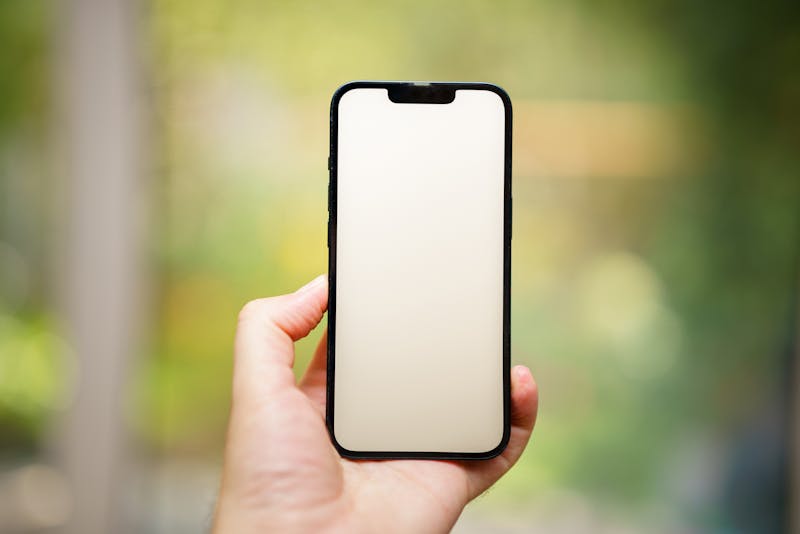
The Anatomy of a Glitchy Digitizer
Ghost touches occur when the capacitive sensor array registers input without physical contact. The underlying reason often traces back to electromagnetic interference, a failing digitizer cable, or moisture trapped beneath the glass assembly. Meanwhile, dead zones represent the opposite failure mode: areas where the sensor completely fails to carry out detection of finger presence, no matter how hard you press.
Many buyers make the mistake of assuming a clean glass surface equals a healthy screen. That assumption is dangerous. A panel can look pristine while suffering from severe internal delamination or controller logic errors. If you are evaluating a device for competitive mobile gaming, even a millisecond of latency or a tiny unresponsive patch in the corner can ruin your performance. You cannot afford to overlook these traits.
Leveraging Multi-Touch Diagnostic Tools
To carry out a proper assessment, stop using your thumb as the only testing instrument. Instead, employ dedicated multi-touch test utilities that visualize the raw data stream from the touch controller. These tools come with capabilities to display every active contact point in real time, revealing ghosts that appear and disappear sporadically.
On Android devices, you can often access built-in engineering menus by entering specific codes into the dialer, though this varies by manufacturer. Alternatively, install a trusted third-party app designed to map touch coordinates. Once launched, the application will render a grid or a blank canvas that lights up wherever the system detects pressure.

Run your finger slowly across the entire surface. Watch closely. Do you see phantom dots popping up where no finger exists? That is a ghost touch event. Does the trail of your movement break or skip over a specific region? That indicates a dead zone. Perform this sweeping motion multiple times, varying your speed and pressure, because some faults only manifest under rapid interaction or light grazing.
For iOS users, the options are more restricted due to sandboxing, but Guided Access combined with specific accessibility features can help isolate behavior. You might also leverage web-based touch testers that run inside Safari, although they lack the low-level access of native engineering tools. Even so, a thorough manual sweep using a drawing app with maximum brush sensitivity can highlight significant gaps in response.
Interpreting the Data Stream
When you observe the output, do not dismiss a single flicker as a software bug. Hardware degradation tends to start small. A ghost touch that appears once every thirty seconds today could become a constant barrage tomorrow, making the device impossible to use. The key driver behind these intermittent issues is often a loose connector or a micro-fracture in the digitizer circuitry that expands with heat or movement.
If the test reveals a cluster of false inputs near the charging port, suspect power supply noise interfering with the capacitive field. This frequently happens after poor-quality repairs where non-OEM screens or cheap batteries introduce electrical instability. In such cases, the screen isn't just broken; it is electrically compromised. No amount of software updating will fix a hardware conflict of this nature.
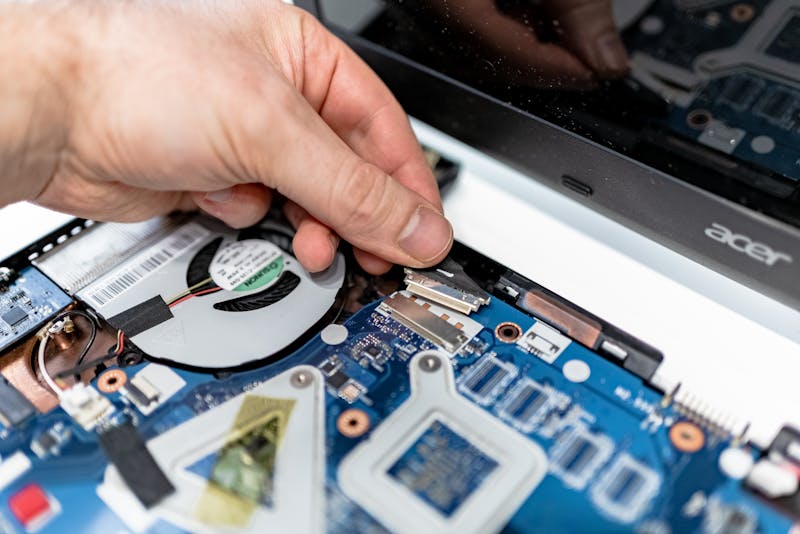
Dead zones tell a different story. They usually point to physical damage sustained from drops or excessive pressure. The sensor grid underneath the glass has likely severed connections in that specific sector. If you find a dead zone larger than a few millimeters, walk away from the deal. Attempting to perform recovery on a damaged digitizer layer is rarely cost-effective compared to replacement, and even then, the structural integrity of the device remains questionable.
The Second-Hand Buyer's Workflow
When meeting a seller, do not feel shy about requesting five minutes to run these diagnostics. A honest seller will understand the necessity of verifying the device condition. If they refuse or rush you, treat that hesitation as a major red flag. You are looking to purchase a tool, not a mystery box.
Start by cleaning the screen thoroughly. Oil and dirt can mimic dead zones or cause erratic tracking, leading to false positives. Once the surface is spotless, launch your chosen touch visualization tool. Drag a single finger in a slow, continuous loop covering every edge and corner. Then, switch to a multi-finger gesture, pressing down with three or four digits simultaneously to ensure the controller handles complex input streams without dropping contacts.
Pay attention to the edges. Many aftermarket screens suffer from reduced sensitivity along the bezels because the alignment during installation was slightly off. This misalignment creates narrow strips of unresponsiveness that frustrate swipe gestures used for navigation. If the edge response feels mushy or inconsistent compared to the center, the replacement part was likely installed with poor precision.
Why Latency Matters Beyond Broken Pixels
Even if the screen registers every touch, the timing might be wrong. High-end gamers know that "touch sampling rate" dictates how quickly the screen reports your input to the processor. A degraded digitizer or a low-quality replacement panel may introduce noticeable lag between your finger hitting the glass and the action occurring on screen.
Use apps that measure touch latency specifically. These tools calculate the time delta between the physical event and the visual feedback. If the numbers seem inflated or fluctuate wildly, the touch controller is struggling to process the data stream efficiently. This inconsistency creates a disjointed user experience that feels sluggish, regardless of how fast the phone's CPU actually is.

Do not let a shiny exterior fool you. The true health of a smartphone lies in the invisible layer beneath the glass. By leveraging these diagnostic techniques, you shift the power dynamic from hopeful guessing to empirical verification. You save yourself from buying a haunted device that will drain your patience and your wallet.
Perform this validation ritual every time you handle a used phone or collect a repaired one. It takes mere minutes but offers protection against weeks of frustration. The screen is your primary interface; if it lies to you, the rest of the device doesn't matter. Make sure your next purchase responds exactly when and where you tell it to.
Ready to test your settings? Just seconds.
Recommended Tools
Video Capability Test - 4K/8K Decoding Performance
Analyze your browser and device's video decoding performance. Supports 4K/8K playback testing to identify stuttering, dropped frames, artifacts, and A/V sync issues.
Webcam Test - Check Camera Resolution & Focus
Quickly verify if your webcam is working. Check resolution, focus, and clarity. Supports mirroring and snapshot capture. Essential tool before Zoom/Teams calls.
Web Bluetooth Scanner & Connection Test
Use the Web Bluetooth API to scan for nearby devices. Test browser connectivity, pairing, and data transfer capabilities (requires compatible hardware).
Mobile Sensor Test - Gyroscope & Accelerometer
Comprehensive check for mobile sensors. Read real-time data from gyroscopes, accelerometers, and orientation sensors to verify motion sensitivity.
Online GPS & Geolocation Accuracy Test
Retrieve current device coordinates. Test the accuracy of GPS and IP-based geolocation. View latitude, longitude, altitude, and position update speed.
Screen Sharing Test - Browser Capabilities
Simulate an online meeting environment to test browser screen sharing permissions and quality. Verify window sharing, full-screen sharing, and system audio capture.